How to use ChatGPT Projects (and Claude's) for work you repeat
ChatGPT Projects (and Claude's) keep your instructions and files for each job you repeat, so the monthly report takes one line. How to set one up, with an example.

ChatGPT Projects, and Claude’s, give each job you repeat its own folder, with your instructions and files already inside. Set one up once, and every month you open it and type one line. It’s the fix for scrolling through 40 chats looking for the one where you explained your report template.
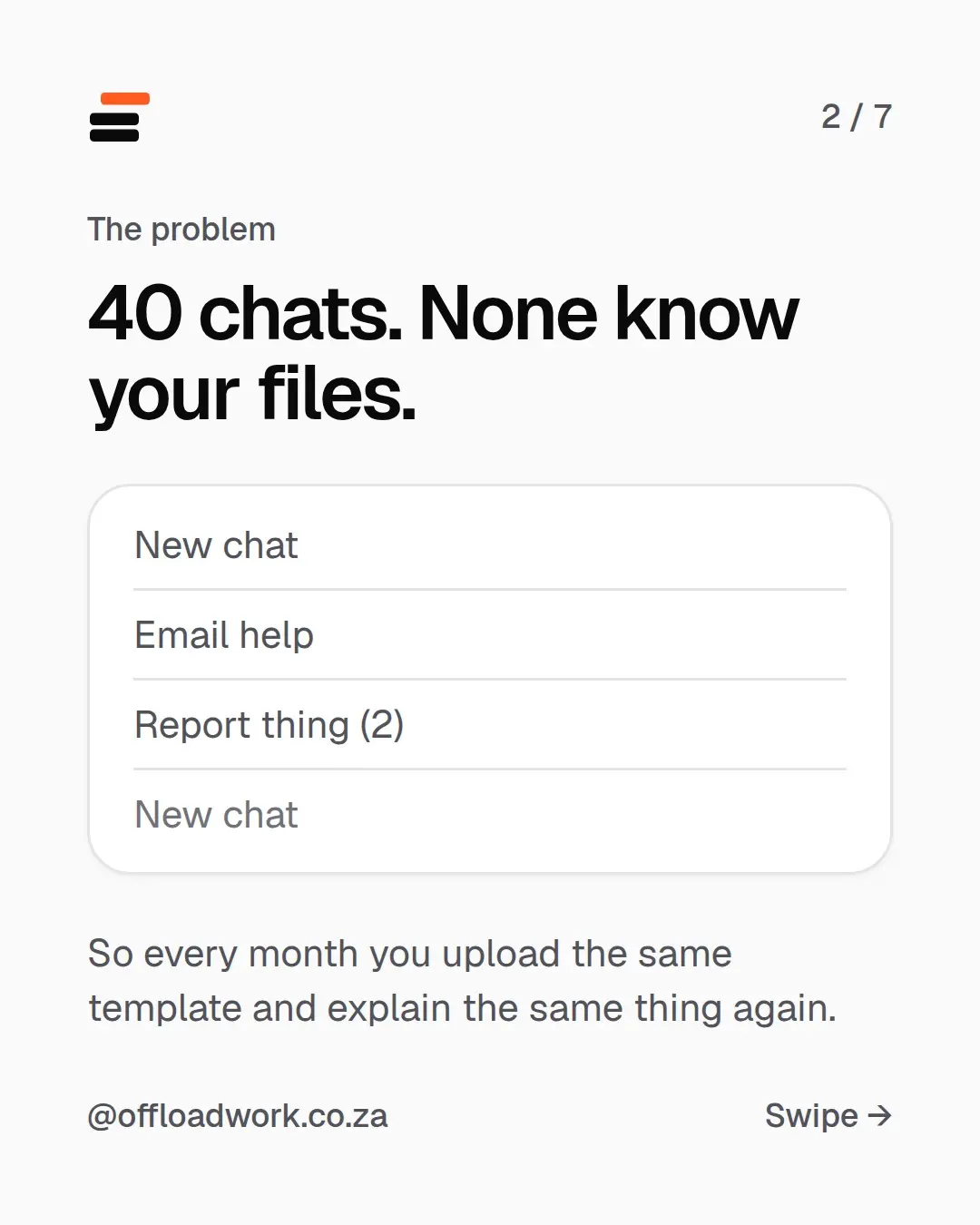
The problem: 40 chats, none know your files
Your chat list probably looks like this:
- New chat
- Email help
- Report thing (2)
- New chat
So every month you upload the same template and explain the same thing again: the format, the tone, who reads it, what to flag. All before any work gets done, every single time.
The fix: one Project for each job you repeat
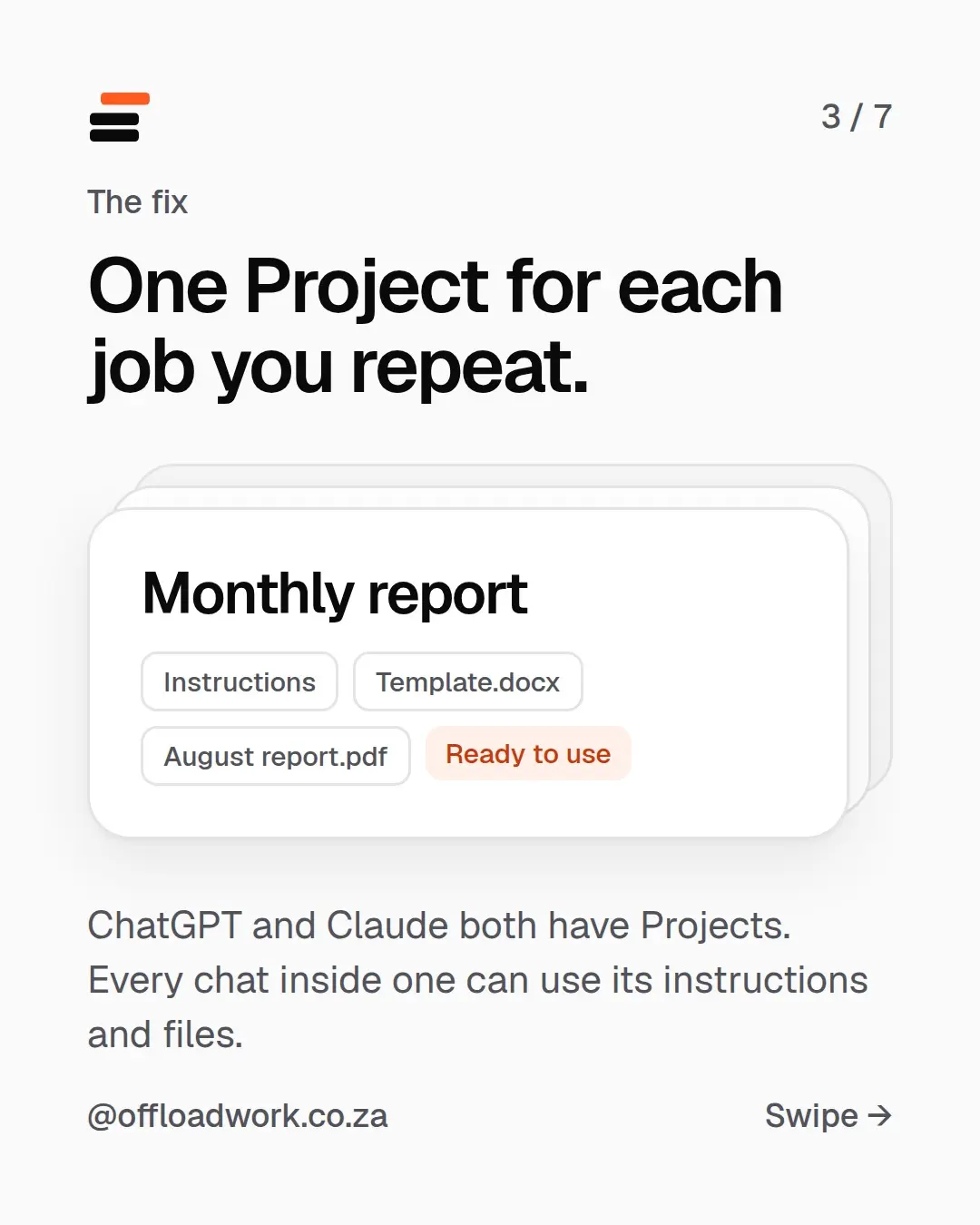
ChatGPT and Claude both have Projects. A Project is a folder for one job, say a monthly report. Every chat inside it can use the Project’s instructions and files, so it starts off knowing the job.
Picture a “Monthly report” Project holding:
- Instructions
- Template.docx
- August report.pdf
Ready to use.
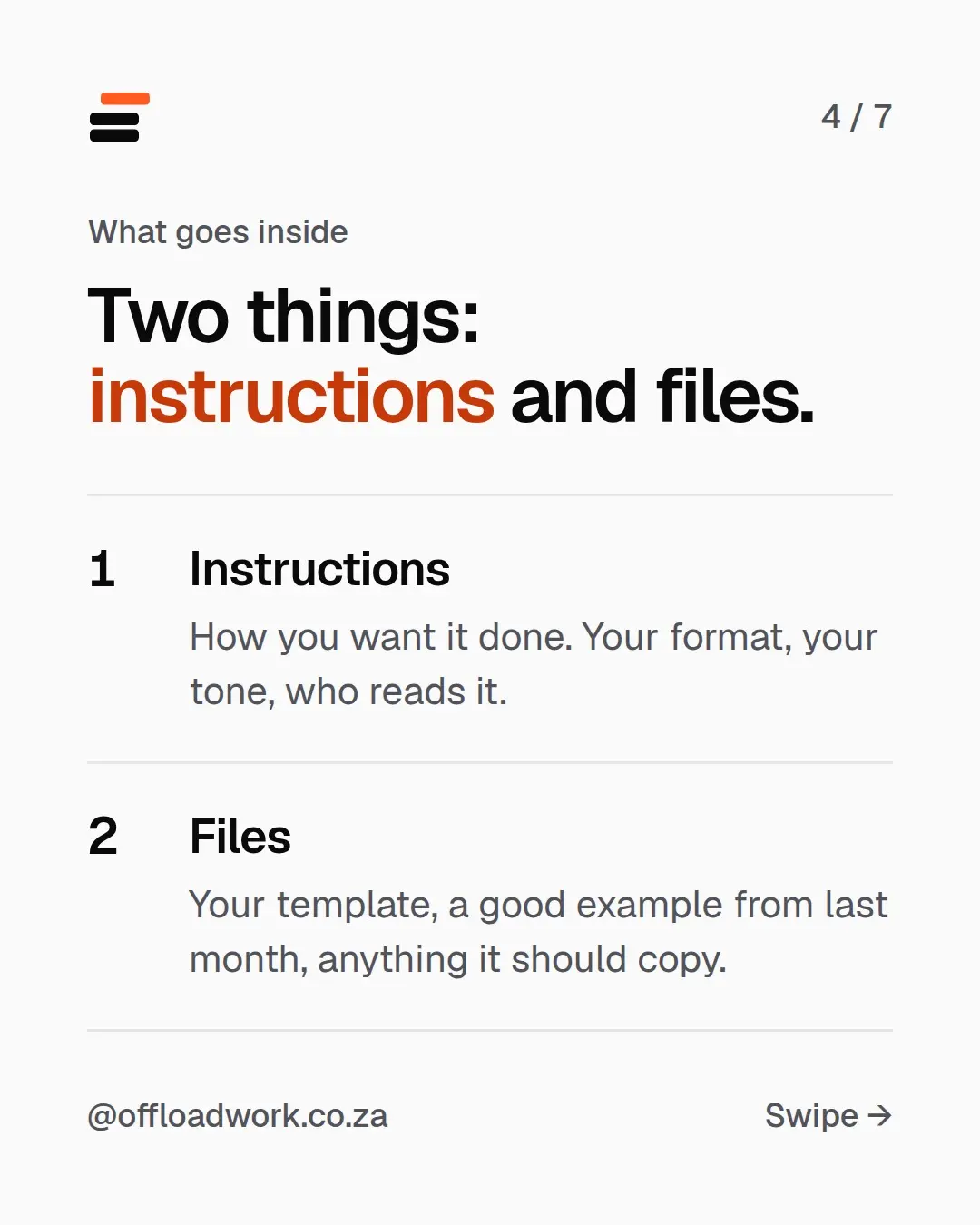
What goes inside: two things
1. Instructions
How you want it done. Your format, your tone, who reads it. Think of it as the handover note you’d give a new colleague taking over the report.
2. Files
Your template, a good example from last month, and anything it should copy. A good example teaches more than a long description. If last month’s report was right, attach it and say “like this”.
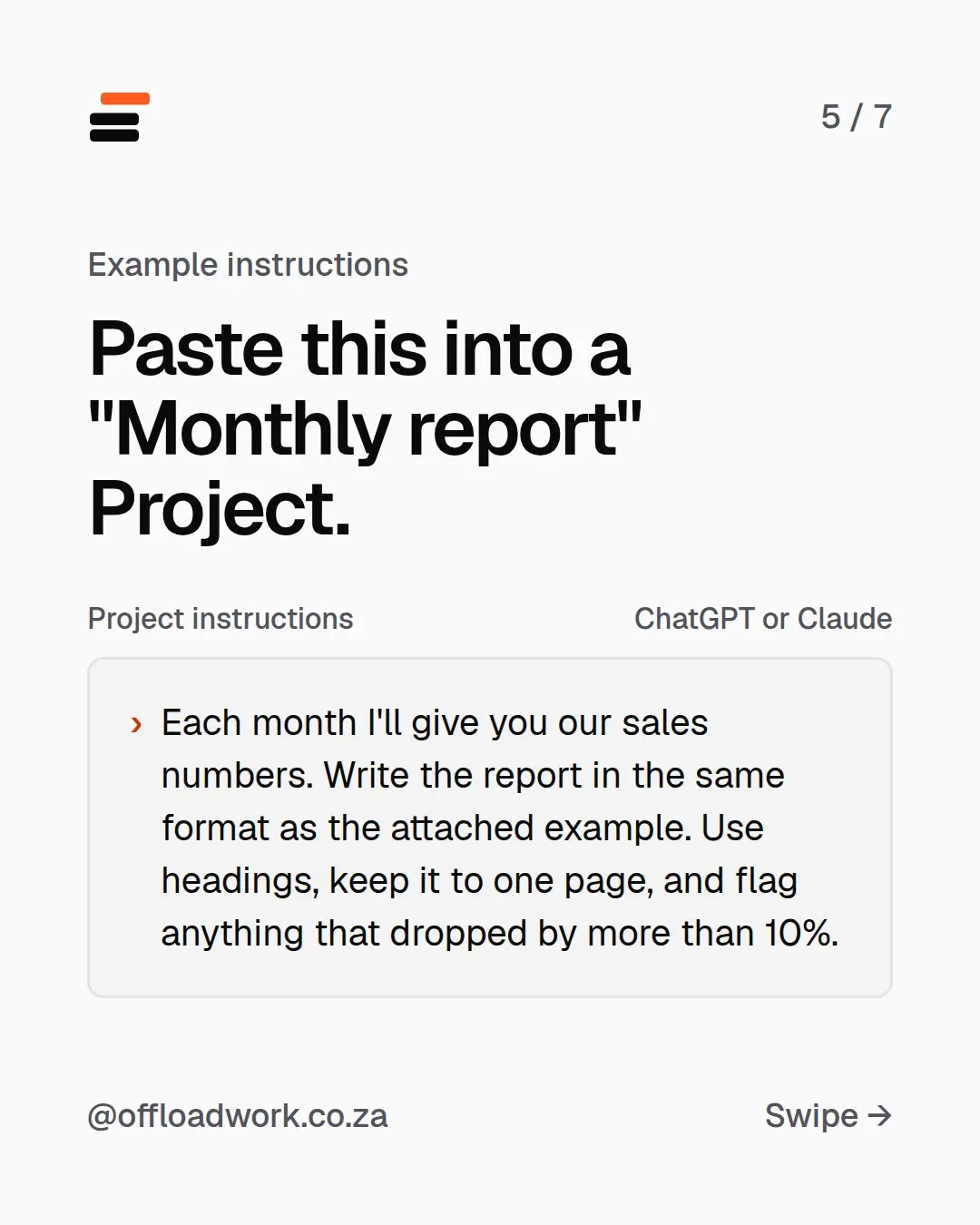
Example instructions: paste this into a “Monthly report” Project
Each month I'll give you our sales numbers. Write the report in the same format as the attached example. Use headings, keep it to one page, and flag anything that dropped by more than 10%.
Change the details to fit your report. Notice what each part does:
- “Each month I’ll give you…” tells it what to expect from you.
- “Same format as the attached example” anchors it to a real, approved report.
- “Keep it to one page” sets the length, so it doesn’t guess (it usually guesses too long).
- “Flag anything that dropped by more than 10%” is the judgement call you’d otherwise make yourself.
If this is your first time writing instructions for AI, the three changes that fix most bad answers apply here too.
Getting value from this? Join The Offload for one setup like this every week: one AI update, one workflow and one prompt to copy. Two minutes to read.
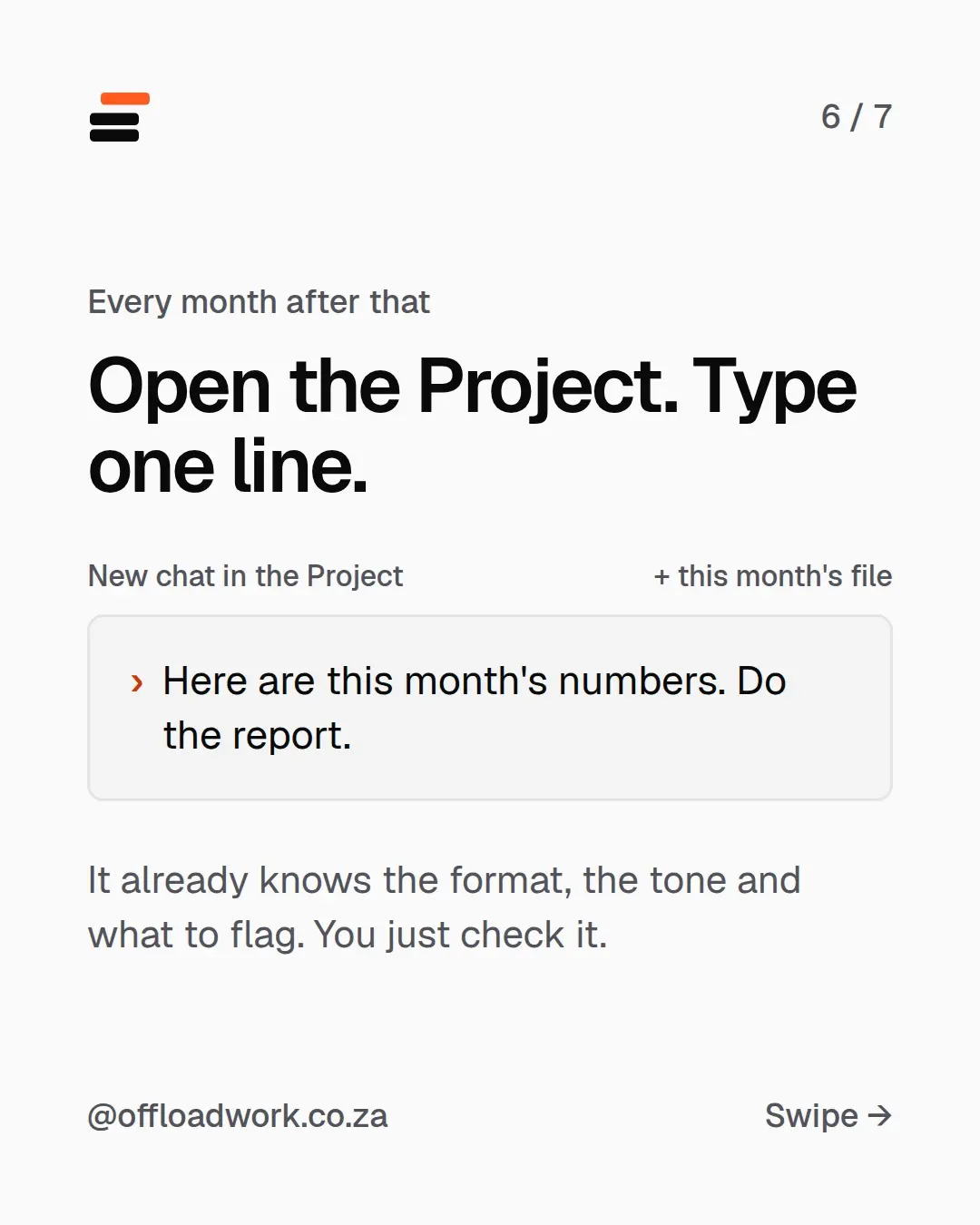
Every month after that: open the Project and type one line
Start a new chat inside the Project, attach this month’s file, and type:
Here are this month's numbers. Do the report.
It already knows the format, the tone and what to flag. You just check it. Read the numbers against your source, fix anything that’s off, and you’re done.
More Projects worth setting up
Any job you do on repeat with the same format is a good candidate:
- Weekly client update. Instructions: who the client is and what they care about. Files: two past updates they liked.
- Job ads. Instructions: your company’s tone and must-have lines. Files: your best past ad.
- Quotes or proposals. Instructions: your pricing rules and terms. Files: a template and a winning example.
- Monthly slide deck. Claude can now build the deck from your notes; a Project keeps your template and style ready every time.
- Meeting minutes. Use the meeting notes prompt as the Project instructions.
Projects vs custom instructions: use both
They do different jobs:
- Custom instructions are about you: your role, your tone, that you’re in South Africa. They apply to every chat. Set them up here.
- Projects are about one job, and only apply inside that Project.
With both in place, a chat inside your “Monthly report” Project knows who you are and how the report works. Add Gmail and Calendar connectors and Claude can pull in what it needs from your inbox too.
The free AI guide walks through all of this step by step. If you’d like your Projects built with you, around your actual week, that’s what one-on-one setups are for. More workflows to try are in Do this today.
Questions
What is a Project in ChatGPT or Claude?
A folder for one job you repeat. You add instructions (how you want it done) and files (your template, a good example). Every chat inside the Project can use both.
Do ChatGPT and Claude both have Projects?
Yes. Both call them Projects, and both let you add instructions and files that every chat inside can use.
How is a Project different from custom instructions?
Custom instructions are about you and apply to every chat. A Project is about one job, like the monthly report, and only applies to chats inside it.
What should I make a Project for?
Anything you do every week or month with the same format: a report, client updates, job ads, quotes, meeting minutes.