How to make a slide deck with Claude, straight from your notes
How to make a slide deck with Claude, right in the chat: turn messy notes into a presentation in 3 steps, then give it your company's look. Prompts to copy.
You can now make a slide deck with Claude right in the chat: paste in your notes, say what you need, and it builds the slides. Since 16 September it builds presentations, documents and designs with no extra app and no templates to hunt for. It takes three steps, and messy notes are fine.
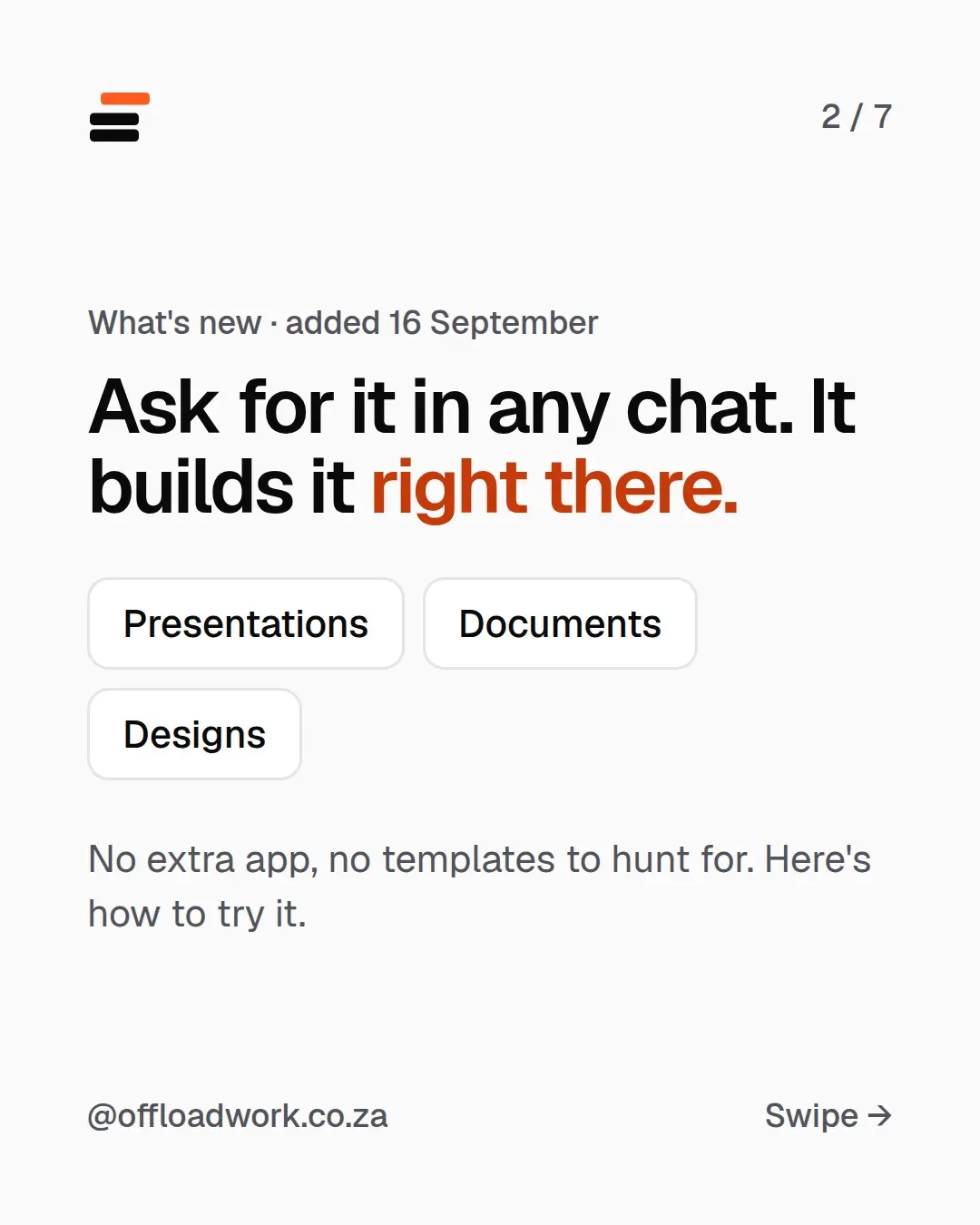
What’s new: ask for it in any chat, it builds it right there
Claude added three kinds of things it can make in the chat:
- Presentations
- Documents
- Designs
No extra app, no template gallery. You describe what you want in plain words, the way you’d brief a colleague, and it builds it. Here’s how to try it with a presentation, the one most people dread.
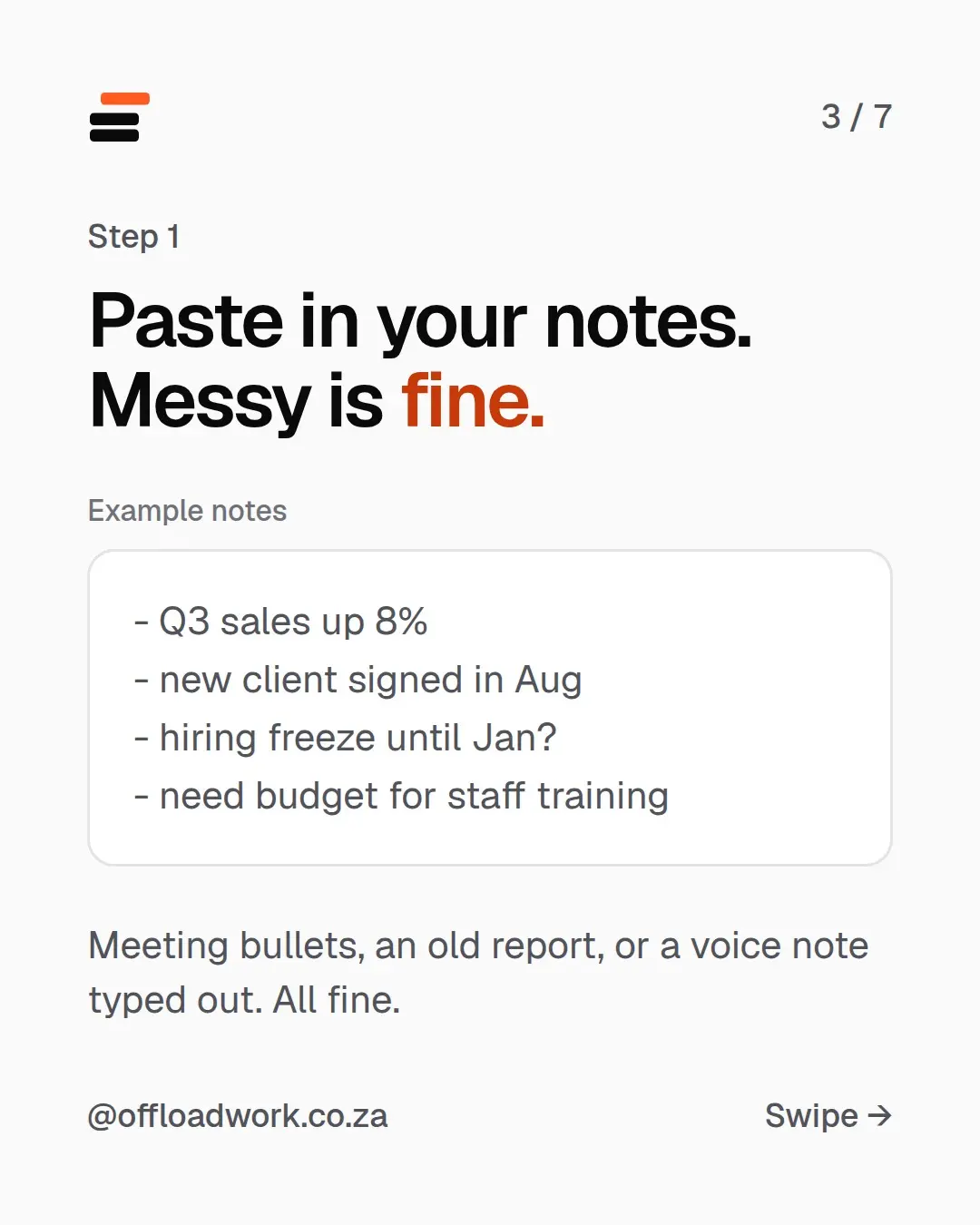
Step 1: paste in your notes (messy is fine)
Whatever you’ve got. For example:
- Q3 sales up 8%
- new client signed in Aug
- hiring freeze until Jan?
- need budget for staff training
Meeting bullets, an old report, or a voice note typed out. All fine. Question marks, half-sentences and typos don’t matter. Getting your thoughts down is your job. Turning them into slides is Claude’s.
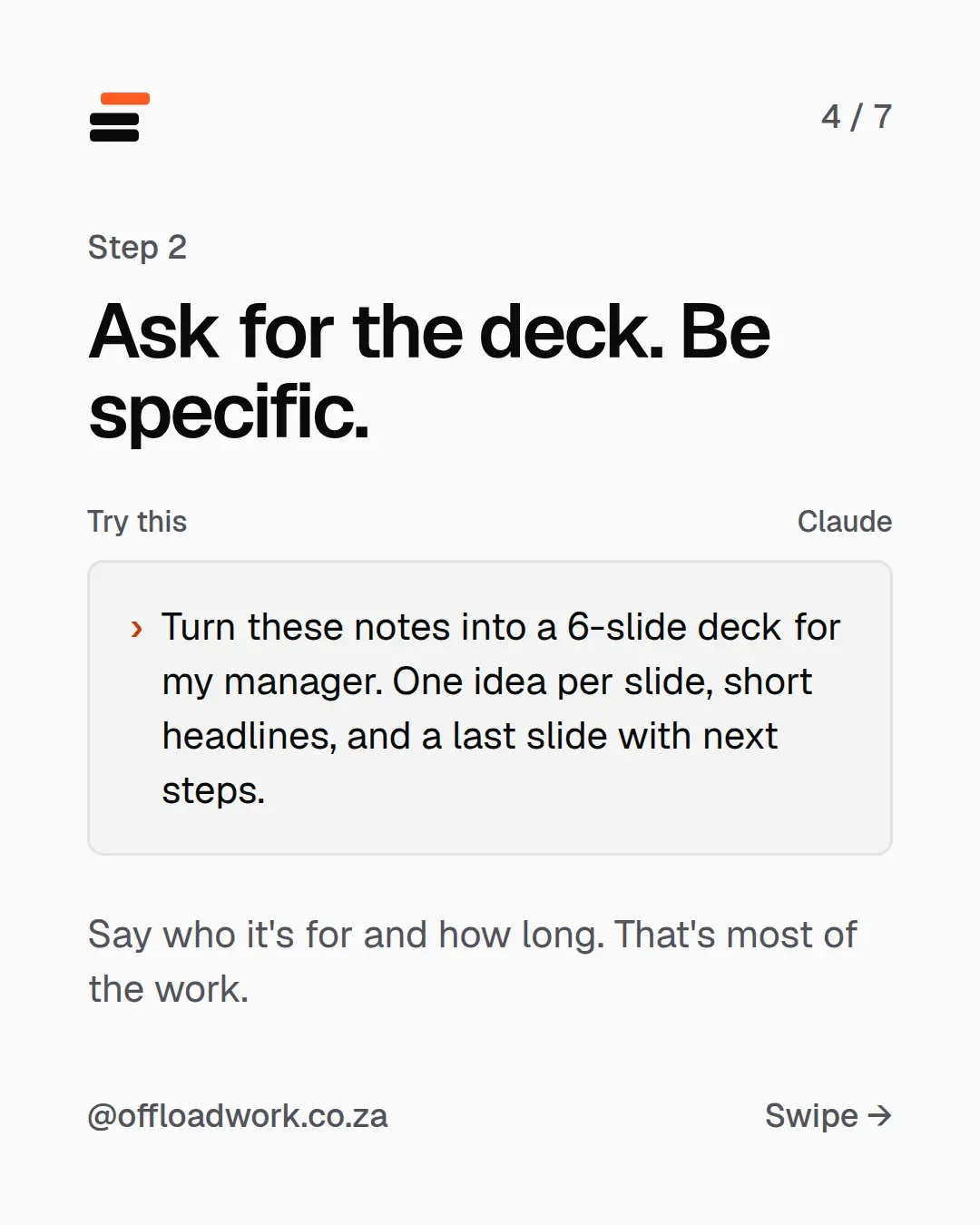
Step 2: ask for the deck, and be specific
Turn these notes into a 6-slide deck for my manager. One idea per slide, short headlines, and a last slide with next steps.
Say who it’s for and how long. That’s most of the work. Every part of that prompt does a job:
- “6-slide” stops it making 20.
- “For my manager” sets the tone and the level of detail.
- “One idea per slide” keeps each slide readable.
- “Short headlines” gives you slides people can take in at a glance.
- “A last slide with next steps” ends on what happens next, which is what managers want.
This is the same briefing method as in how to write better prompts: who it’s for, what you want back, and the format.
Want one workflow like this every week? The Offload newsletter sends one tested workflow and one prompt to copy. Two minutes to read.
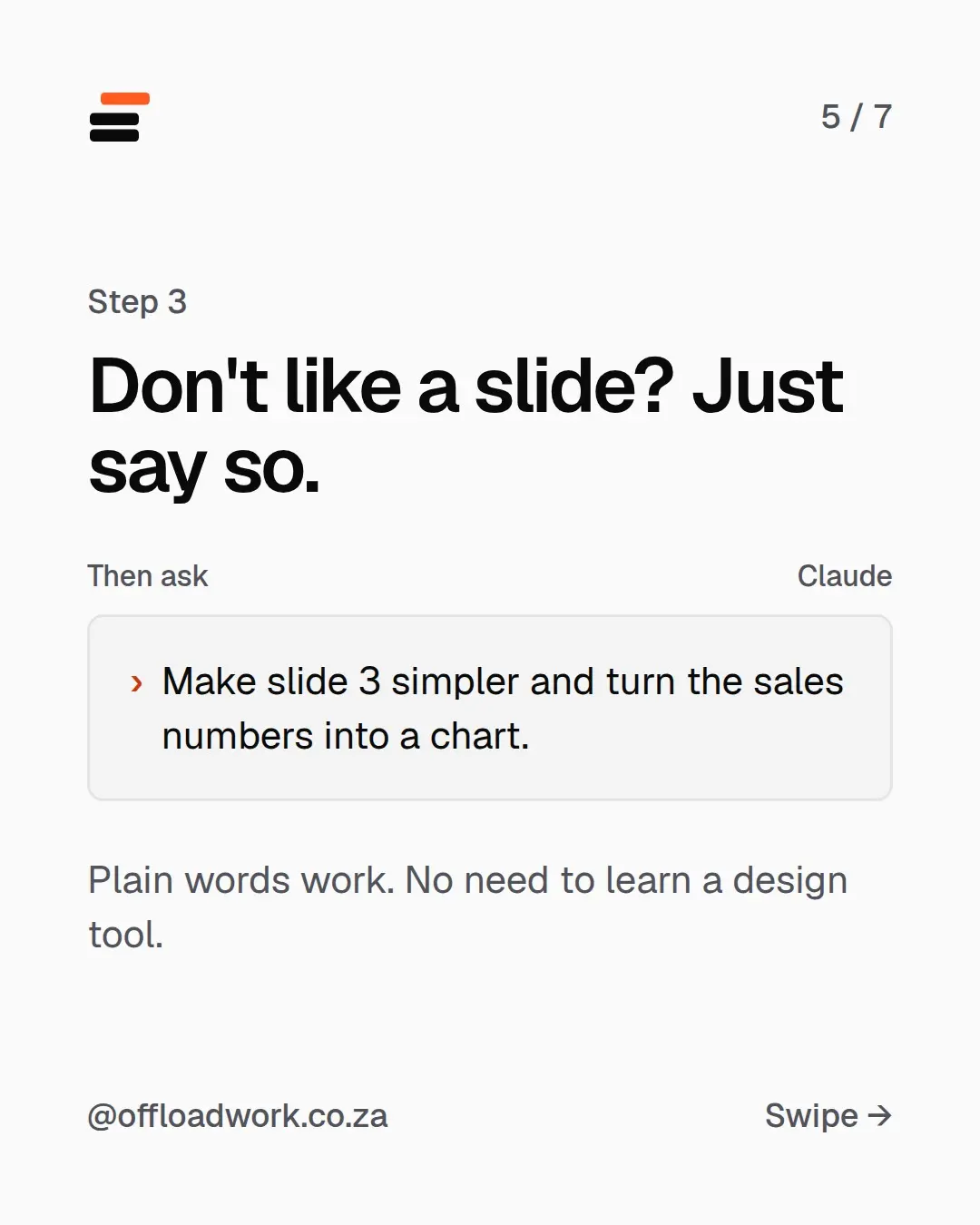
Step 3: don’t like a slide? Just say so
Make slide 3 simpler and turn the sales numbers into a chart.
Plain words work. No need to learn a design tool. Other things worth asking:
- “Swap slides 2 and 4.”
- “Cut slide 5, it repeats slide 2.”
- “Make the headlines more direct.”
- “Add a slide on risks before next steps.”
Treat the first version as a draft from a quick colleague. Two or three rounds of feedback usually gets you somewhere good.
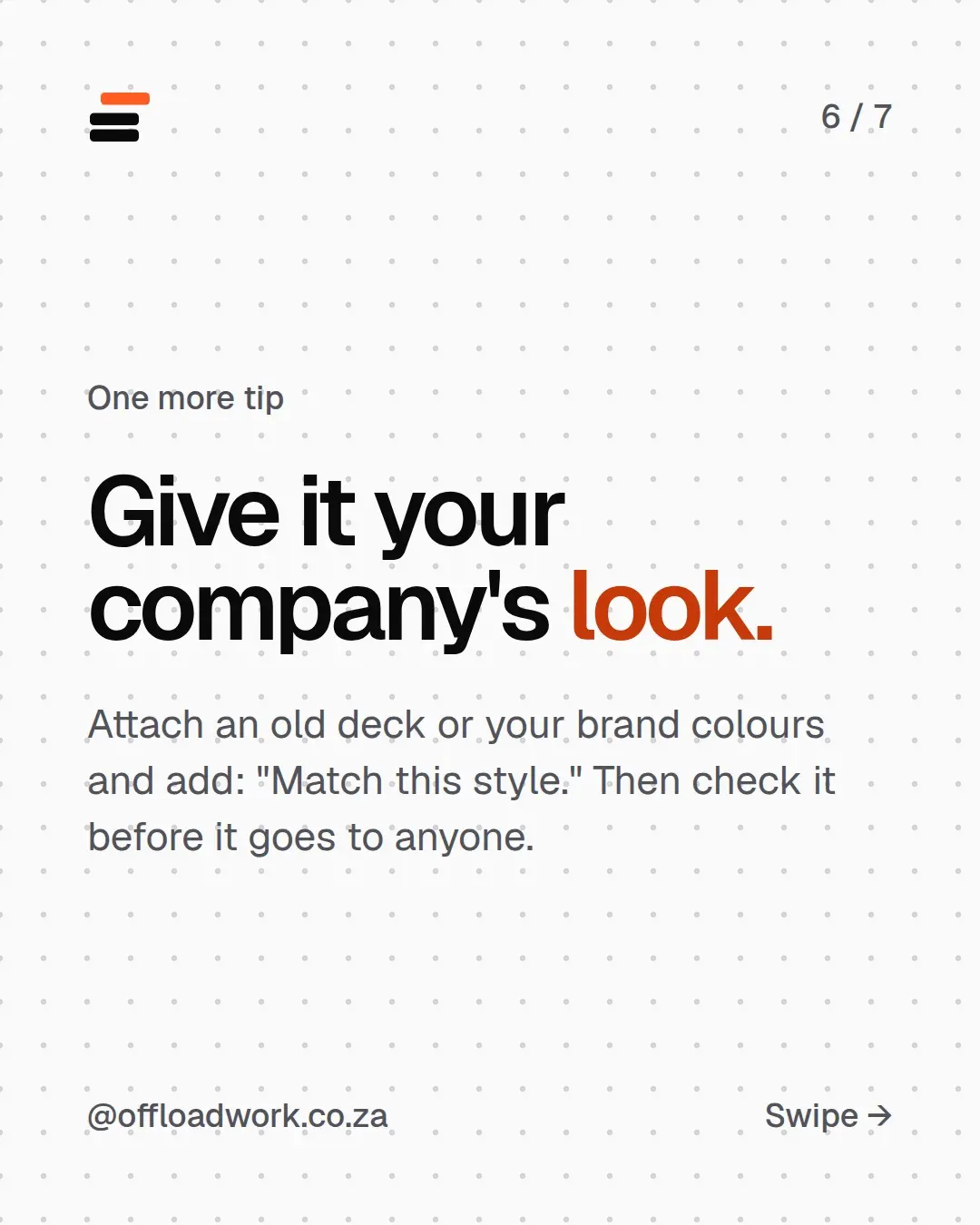
One more tip: give it your company’s look
Attach an old deck or your brand colours and add:
Match this style.
Then check it before it goes to anyone: the numbers, the names, the dates and anything it might have filled in on its own. It builds. You sign off.
Make it faster every time
If you make the same kind of deck regularly (a monthly update, a client report, a board pack), don’t start from scratch each time:
- Put it in a Project with your template, a good past deck and your rules (“always 6 slides, always a chart for sales”). Then each month is one line. How to use Projects.
- Tell Claude who you are so it already knows your role and your audience. Five-minute setup.
ChatGPT can do something similar: GPT-6 builds slides and spreadsheets that follow your template. If you have both, give them the same notes and keep the one that needs less fixing.
Want more setups like this? The free AI guide has the prompts and settings to get AI working for your job. More step-by-step workflows are in Do this today.
Questions
Can Claude make PowerPoint presentations?
Claude can build slide decks, documents and designs right in the chat, from your notes. Check the result, then share it or move it into the tool your office uses.
Do I need a design tool or a template?
No. Plain words work. If you want it to match your company's look, attach an old deck or your brand colours and say 'Match this style'.
What notes can I give it?
Anything: meeting bullets, an old report, or a voice note typed out. Messy is fine.
Can ChatGPT do this too?
ChatGPT with GPT-6 also builds slides that follow an attached template. The prompts here work in both.