5 ChatGPT prompts for work you can use this week
Five copy-paste ChatGPT prompts for work: meeting notes into actions, saying no nicely, Excel formulas, long PDFs and your to-do list. Also work in Claude and Gemini.

These five ChatGPT prompts for work cover the jobs that eat your week: meeting notes, awkward emails, Excel, long documents and your to-do list. Copy them, change the details and keep the ones that work. They work in Claude and Gemini too, on the free plans.
Each one follows the same simple rule from how to write better prompts: say what you’re giving it, what you want back and in what shape.
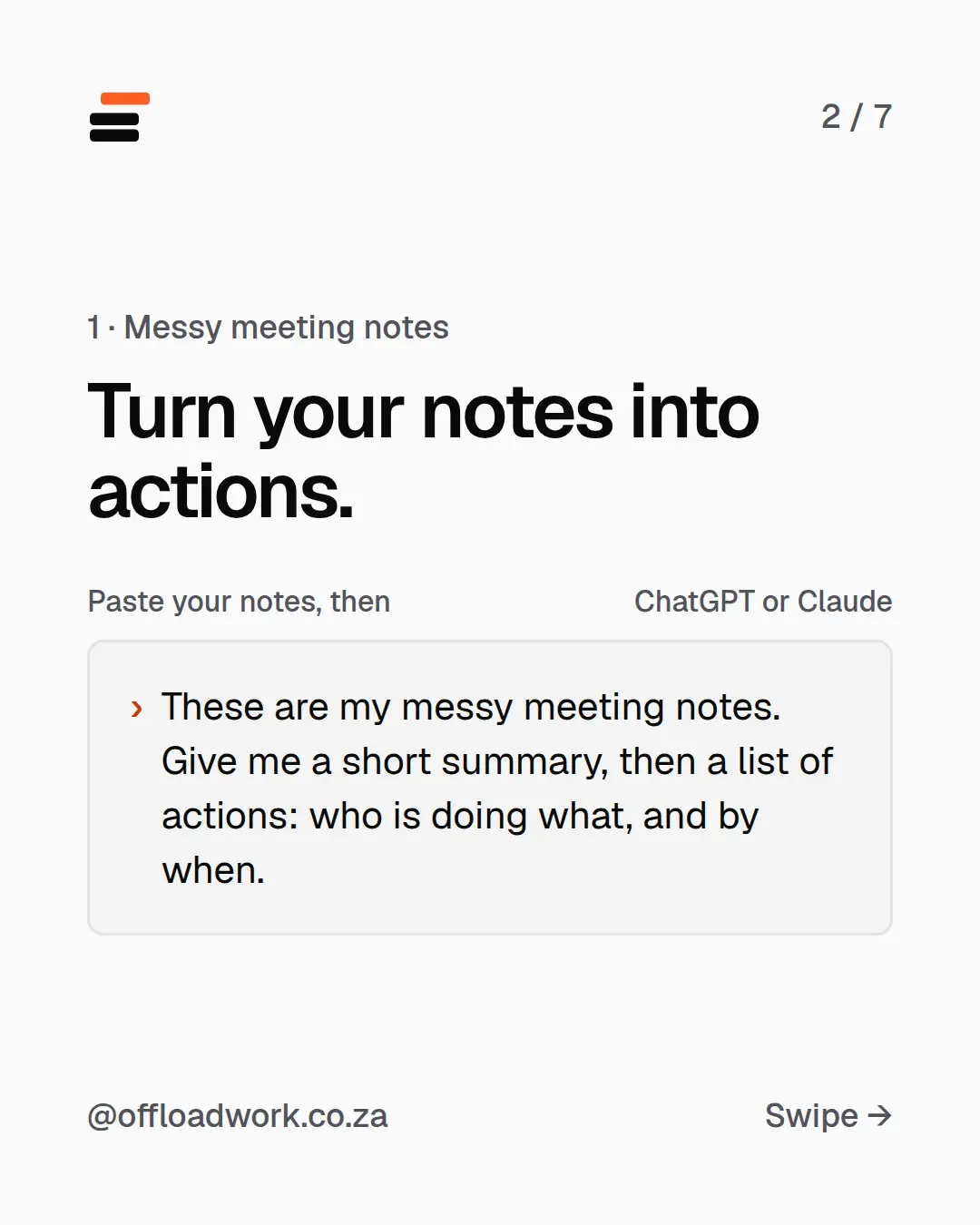
1. Turn messy meeting notes into actions
You left the meeting with half-sentences, arrows and a phone photo of the whiteboard. Paste your notes (or type them out quickly, typos and all), then:
These are my messy meeting notes. Give me a short summary, then a list of actions: who is doing what, and by when.
Why it works: “who, what, by when” is the format every action list needs, and it’s the part people skip when they’re rushing. If a name or date is missing, it’ll show a gap, which tells you exactly what to follow up on.
Take it further: add “Then draft a short follow-up email to the team with the actions.” You’ll have the meeting wrapped up before the next one starts.
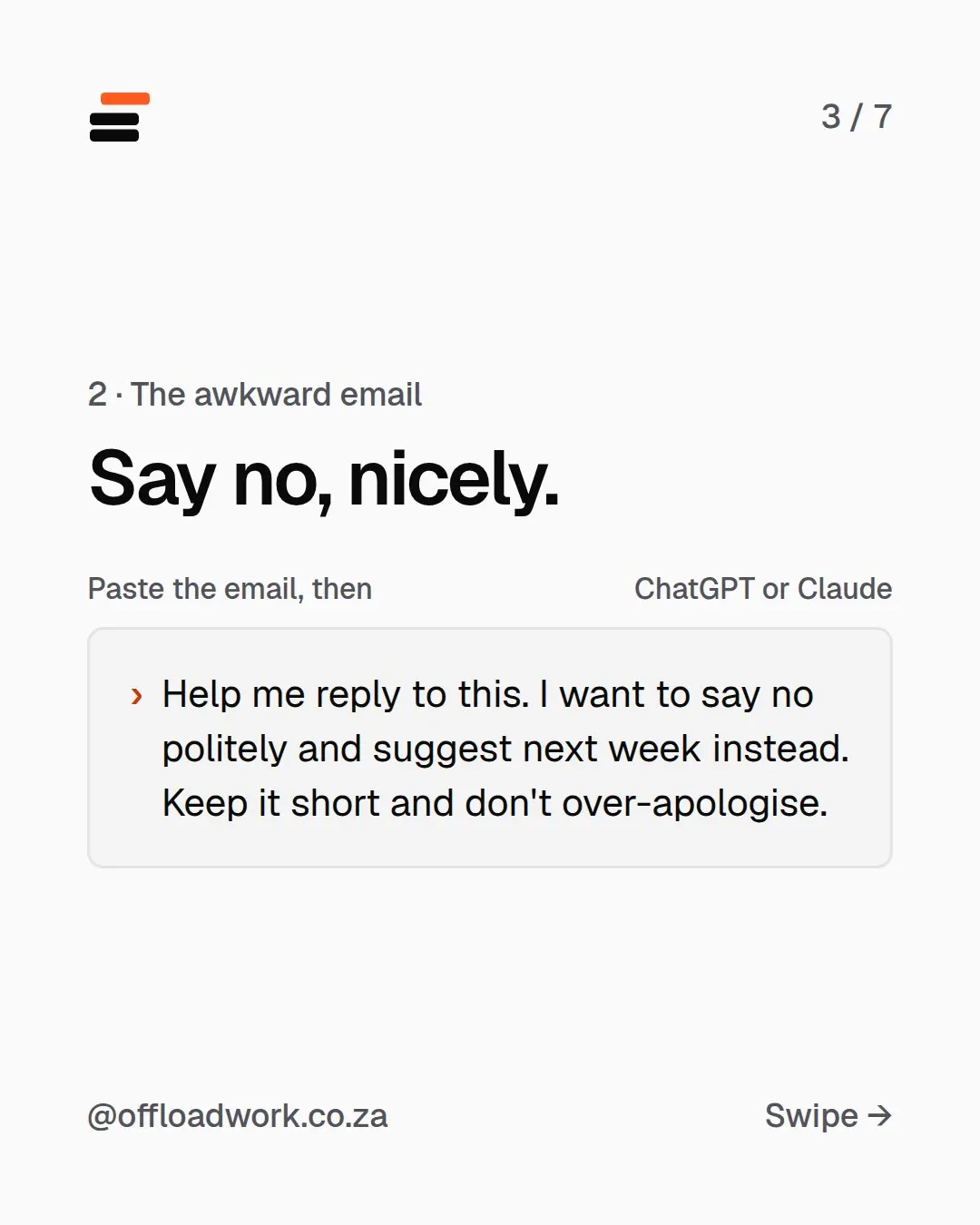
2. The awkward email: say no, nicely
Someone wants a meeting you can’t make, or a favour you can’t do. Paste the email, then:
Help me reply to this. I want to say no politely and suggest next week instead. Keep it short and don't over-apologise.
Why it works: “don’t over-apologise” is the key line. Left alone, AI writes three sentences of sorry before getting to the point. You want warm, clear and done.
Take it further: swap “suggest next week” for whatever you can offer: “suggest they ask Thandi”, “offer a 15-minute call instead”.
Getting value from this? The Offload newsletter sends one new prompt like these every week, tested first. Free, two minutes to read.
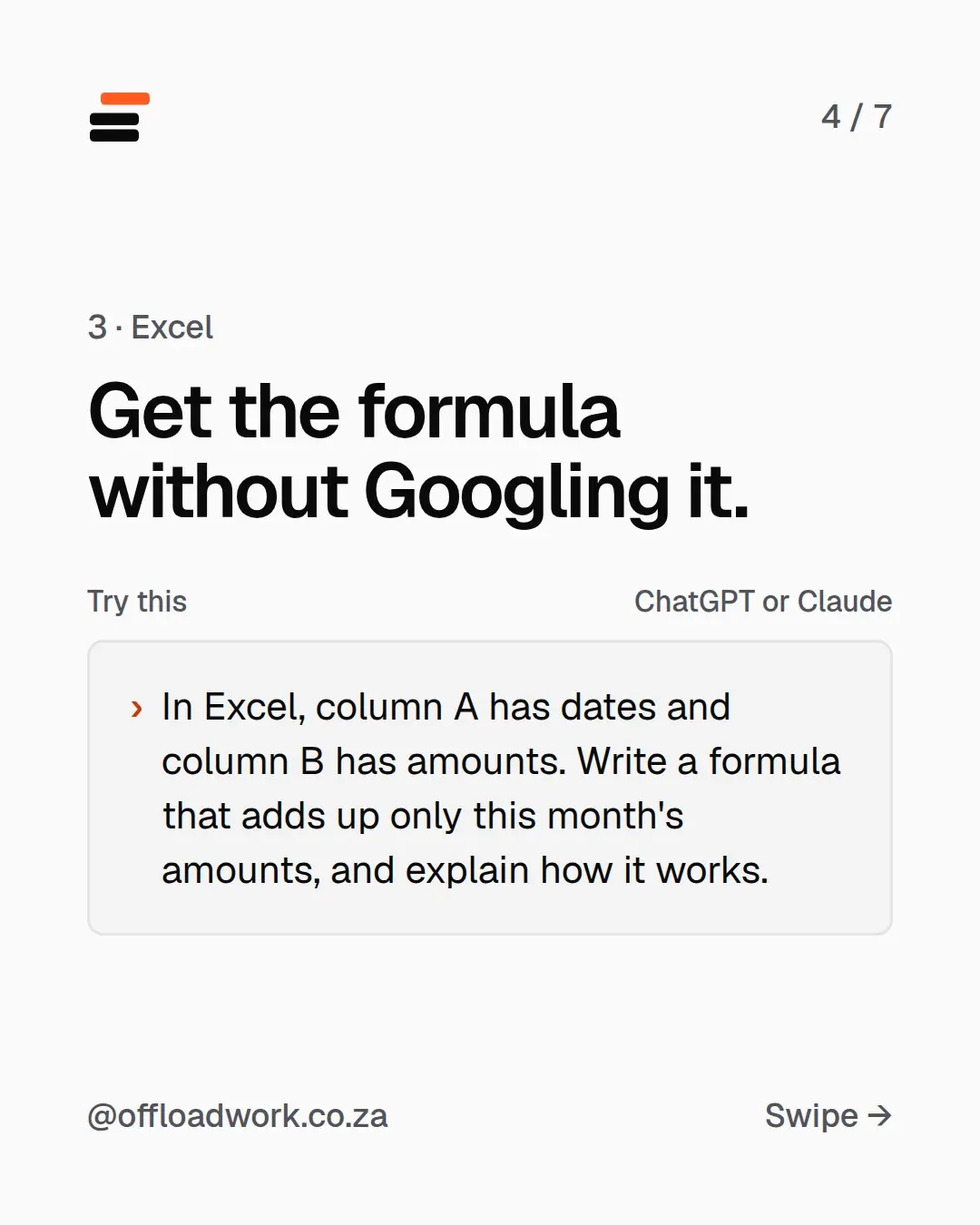
3. Excel: get the formula without Googling it
Describe your spreadsheet in plain words: which column has what.
In Excel, column A has dates and column B has amounts. Write a formula that adds up only this month's amounts, and explain how it works.
You’ll get something like =SUMIFS(B:B, A:A, ">="&EOMONTH(TODAY(),-1)+1, A:A, "<="&EOMONTH(TODAY(),0)), plus a line-by-line explanation. “Explain how it works” is the important part. Next time you’ll be able to change it yourself, and you’ll spot it if the formula doesn’t fit your sheet. Test it on a copy of your file first.
Works for Google Sheets too. Just say “Google Sheets” instead of “Excel”.
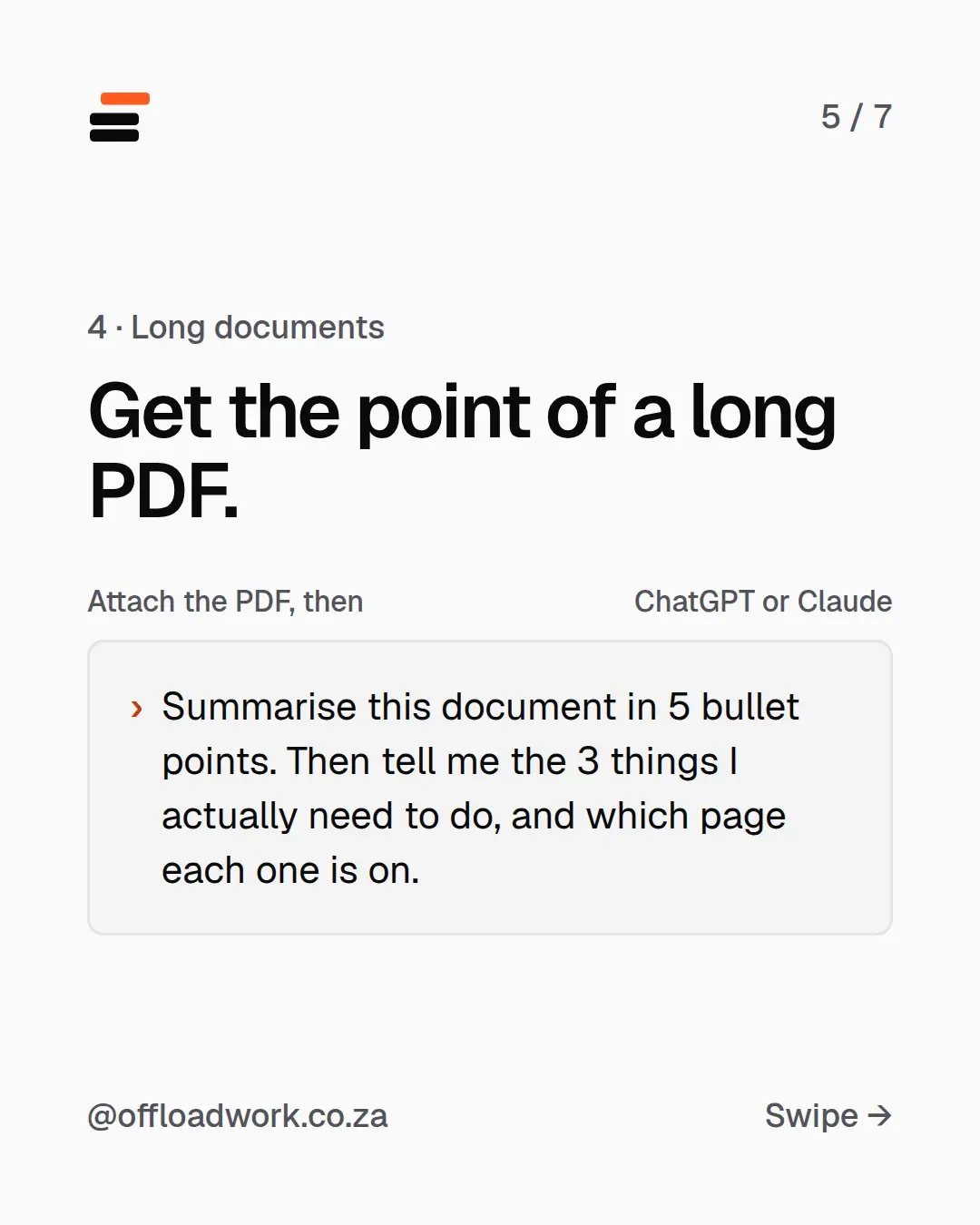
4. Get the point of a long PDF
A 40-page policy, a contract, a tender document, a report from head office. Attach the PDF, then:
Summarise this document in 5 bullet points. Then tell me the 3 things I actually need to do, and which page each one is on.
Why it works: the summary tells you what it says; “the 3 things I actually need to do” tells you what it means for you. Page numbers let you check the parts that matter instead of trusting the summary blindly.
Doing this with the same kind of document every month? Keep your instructions and a good example in a Project so you never re-explain. Here’s how Projects work.
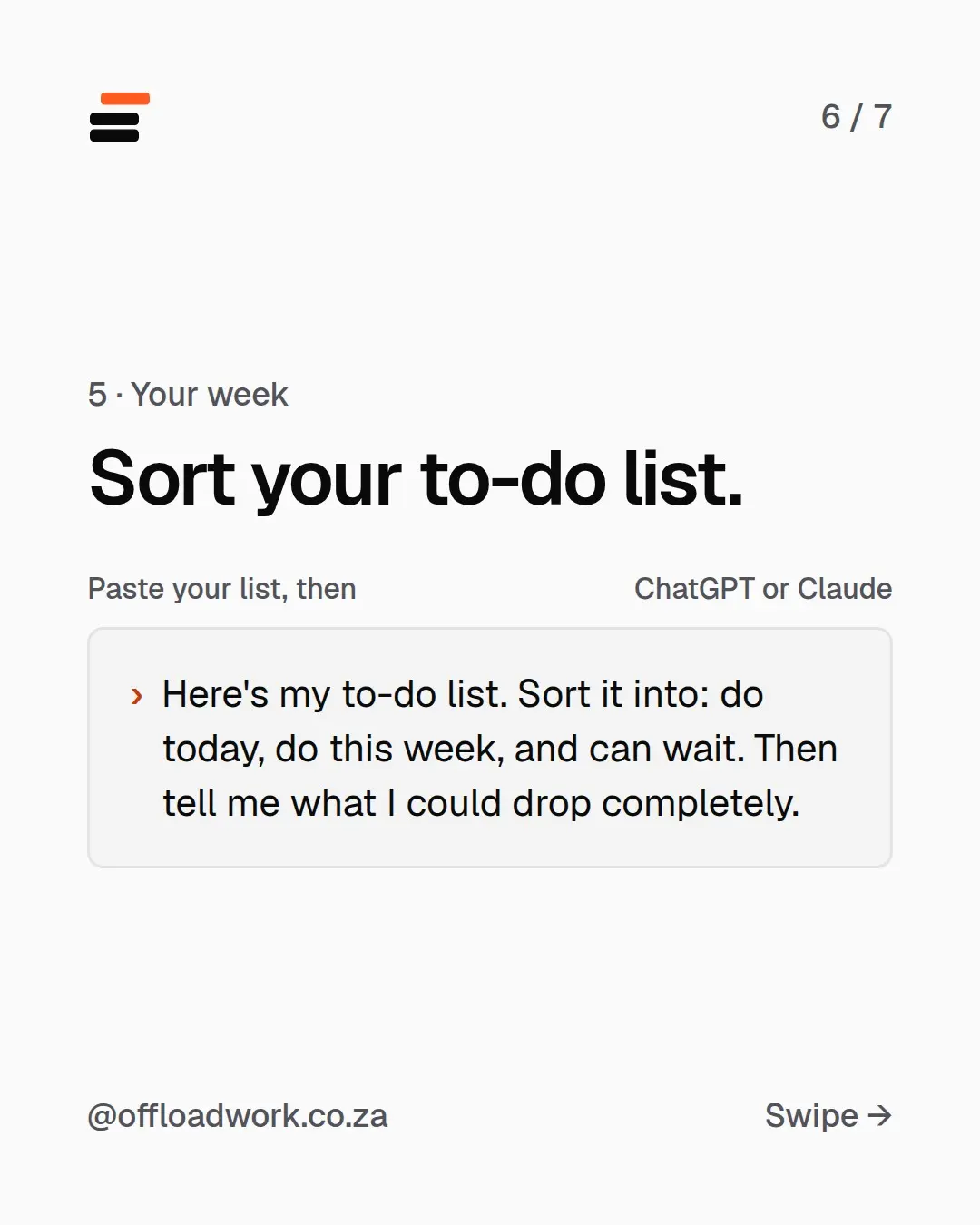
5. Sort your to-do list
Paste your whole list, the long, messy one:
Here's my to-do list. Sort it into: do today, do this week, and can wait. Then tell me what I could drop completely.
Why it works: sorting is the easy part. “What could I drop” is where the value is. It’s much easier to let go of a task when something else points out it doesn’t matter.
Take it further: add your fixed commitments (“I have meetings 9 to 12 and leave at 4”) and ask it to plan your afternoon.
Make these prompts work even better
These prompts work cold, but they get much better when the AI knows your job:
- Tell it who you are once. Your role, your company type and how you like answers, saved in settings. Set it up in five minutes.
- Connect your email and calendar. Then it can find the email for you instead of you pasting it in. Connect Claude to Gmail and Google Calendar.
- Turn notes into slides, not just summaries. Claude can now build a slide deck from your notes right in the chat.
The free AI guide has ten more things to try this week, with the settings to tap and prompts to copy. No tech experience needed. More step-by-step workflows are in Do this today.
Questions
Do these prompts work in Claude and Gemini?
Yes. They're written in plain language, so they work in ChatGPT, Claude, Gemini and Copilot, on free plans too.
Is it safe to paste work documents into ChatGPT?
Follow your company's rules. Leave out passwords, ID numbers, client financial details and anything confidential. On a work account, check what your IT team allows first.
What if the answer is wrong?
Treat it like a first draft from a new colleague. Check numbers, names and dates, and test formulas on a copy of your spreadsheet before you rely on them.
How do I stop typing my job details into every prompt?
Save them once in custom instructions (ChatGPT) or personal preferences (Claude). Every new chat then starts off knowing your job.