Connect Claude to Gmail and Google Calendar to prep your meetings
Connect Claude to Gmail and Google Calendar once, then ask it to prep tomorrow's meetings, find emails that need a reply and draft responses you check and send.

Connect Claude to Gmail and Google Calendar once, and you can ask it to prep tomorrow’s meetings, find emails still waiting on you and draft replies. You choose what it can see and can switch it off any time. The one rule: it drafts, you send.
How it works: connect once, then just ask
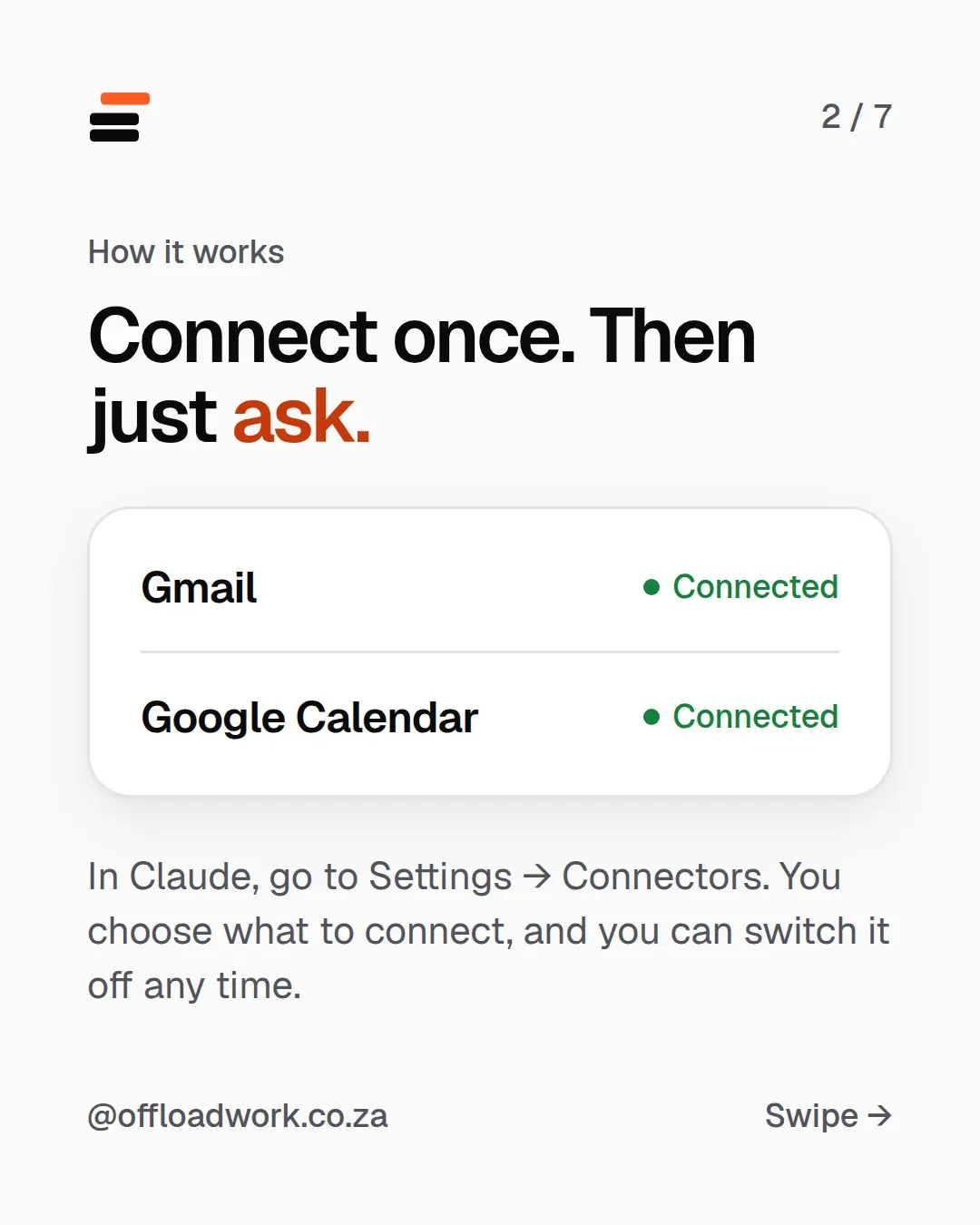
In Claude, go to Settings → Connectors. Connect:
- Gmail
- Google Calendar
You choose what to connect, and you can switch it off any time. Once they show as connected, you don’t need to copy and paste emails into the chat any more. Claude can look them up itself when you ask.
If you’re on a work account, check your company’s rules first. Some IT teams need to approve connected apps.
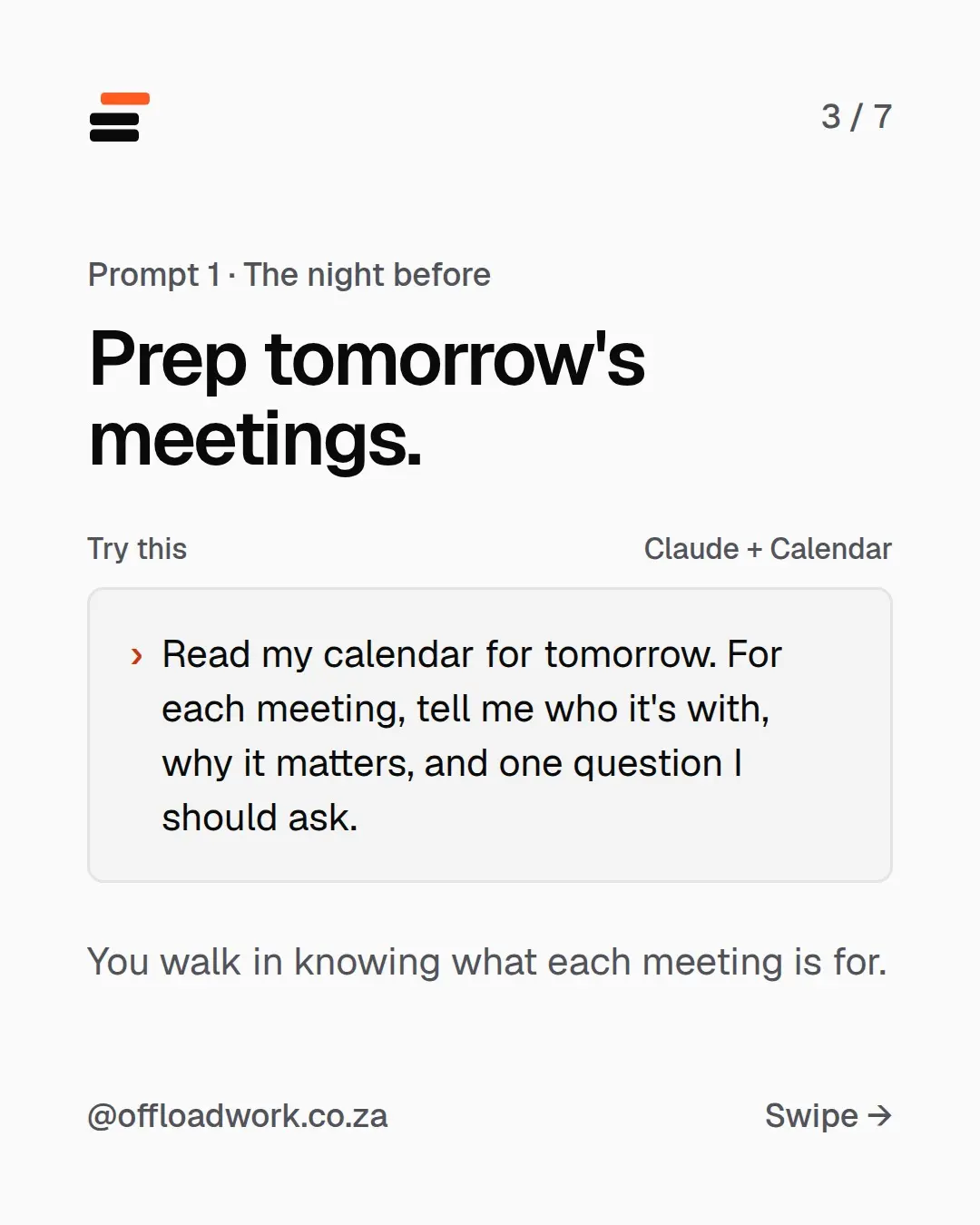
Prompt 1, the night before: prep tomorrow’s meetings
Read my calendar for tomorrow. For each meeting, tell me who it's with, why it matters, and one question I should ask.
You walk in knowing what each meeting is for. “One question I should ask” is the part that makes you look prepared, and it forces the AI to think about the meeting, not just list it.
Try it tonight, and tomorrow starts differently.
Want one setup like this every week? The Offload newsletter sends one tested workflow and one prompt to copy, for people with real jobs. Two minutes to read.
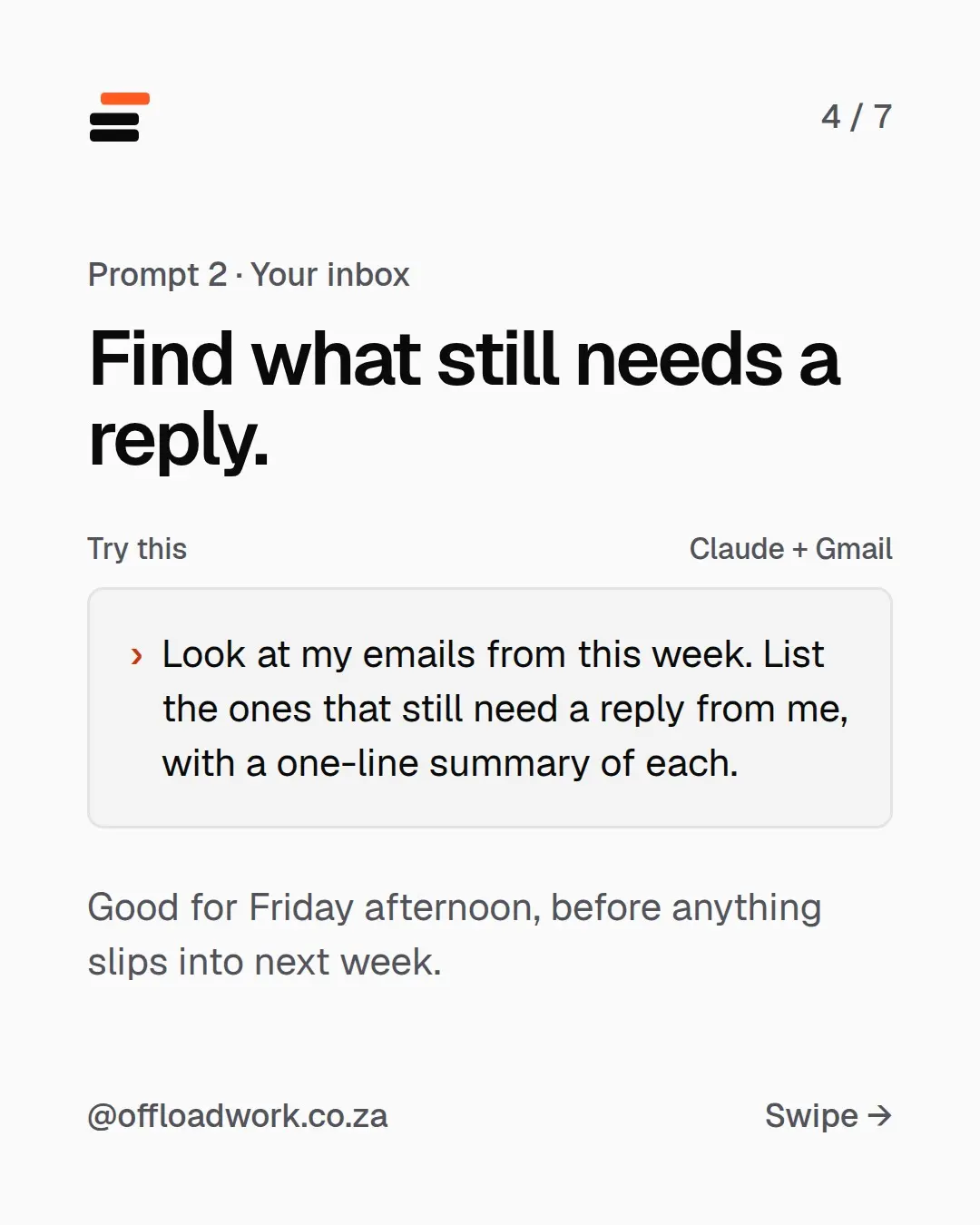
Prompt 2, your inbox: find what still needs a reply
Look at my emails from this week. List the ones that still need a reply from me, with a one-line summary of each.
Good for Friday afternoon, before anything slips into next week. The one-line summary means you can decide in seconds what’s urgent, what’s quick and what can wait until Monday.
Want it sorted? Add: “Put them in order: urgent, quick, can wait.” It’s the same idea as the to-do list prompt, pointed at your inbox.
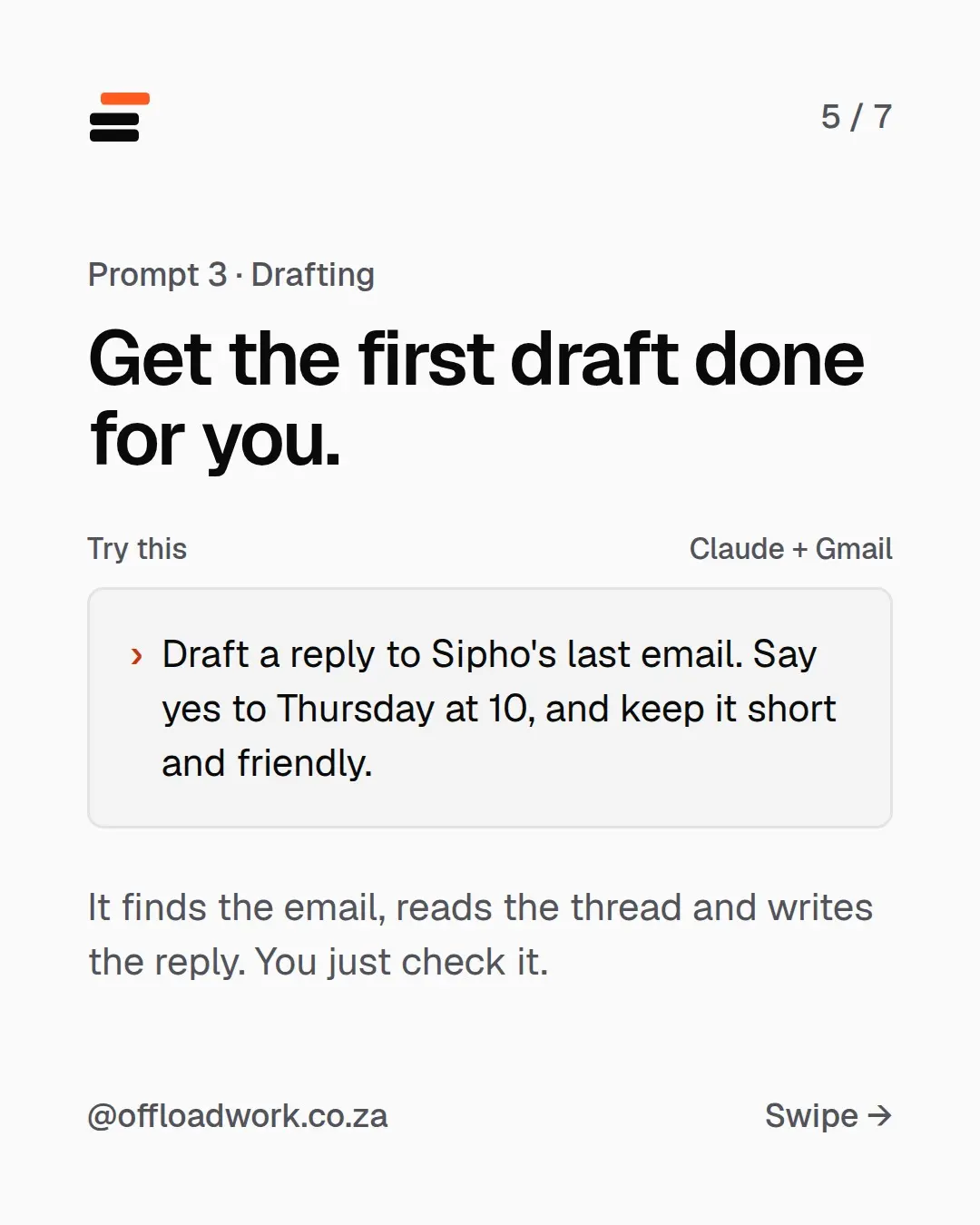
Prompt 3, drafting: get the first draft done for you
Draft a reply to Sipho's last email. Say yes to Thursday at 10, and keep it short and friendly.
It finds the email, reads the thread and writes the reply. You just check it. Change the name, the answer and the tone to suit. The pattern is: who, what you want to say, and how it should sound. That’s the method from how to write better prompts, with the searching done for you.
The new Claude, Opus 5.5, is also much better at plain, human-sounding writing, so drafts need less fixing.
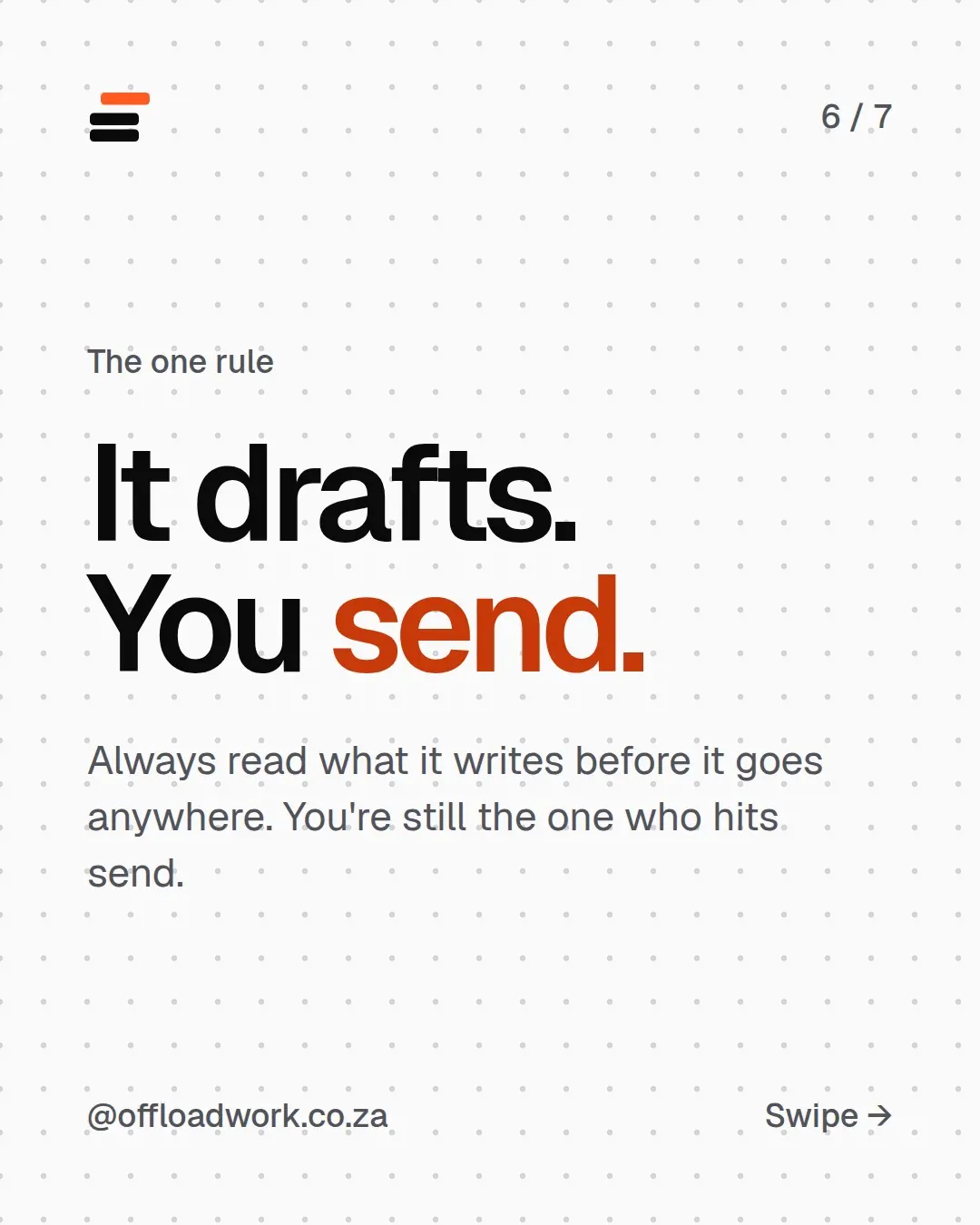
The one rule: it drafts, you send
Always read what it writes before it goes anywhere. You’re still the one who hits send. You know the client, the history and the politics. It doesn’t. Check:
- names, dates and times
- anything it promises on your behalf
- the tone, especially with someone senior or upset
Make it even better
Two setups make these prompts much sharper:
- Tell Claude who you are. Your role, who you usually deal with and how you write, saved in Settings → Profile. Drafts come back sounding like you. Five-minute setup.
- Use a Project for repeat work. A “Client updates” Project with your tone and a good example, plus your connected inbox, turns weekly updates into one line. How Projects work.
The free AI guide walks through connecting your tools step by step. If you’d rather have it set up with you, one-on-one setups connect your email and calendar and build the prompts around your actual week. More setups like this are in Do this today.
Questions
How do I connect Claude to Gmail?
In Claude, go to Settings → Connectors and connect Gmail and Google Calendar. You choose what to connect, and you can switch it off any time.
Can Claude send emails without me?
Use it to draft, not to send. Always read what it writes before it goes anywhere. You're still the one who hits send.
Is it safe to connect my work email?
Check your company's rules first. Some work accounts need IT to approve connected apps. Only connect what you need, and switch it off if you stop using it.
I don't see Connectors in my settings. Why?
Menus move after updates, and your plan or your work account may not have it switched on. Search Settings for 'connectors', or ask your IT team.