ChatGPT custom instructions: stop explaining yourself to AI
Set up ChatGPT custom instructions (or Claude's personal preferences) once, and every chat knows your job, your tone and that you're in South Africa. Template inside.


ChatGPT custom instructions let you describe yourself once, and every new chat starts off knowing your job. Claude has the same thing, called personal preferences. It takes five minutes, works on the free plan, and most people never touch it. After that, answers come back in rands, in your tone, with examples from your kind of work.
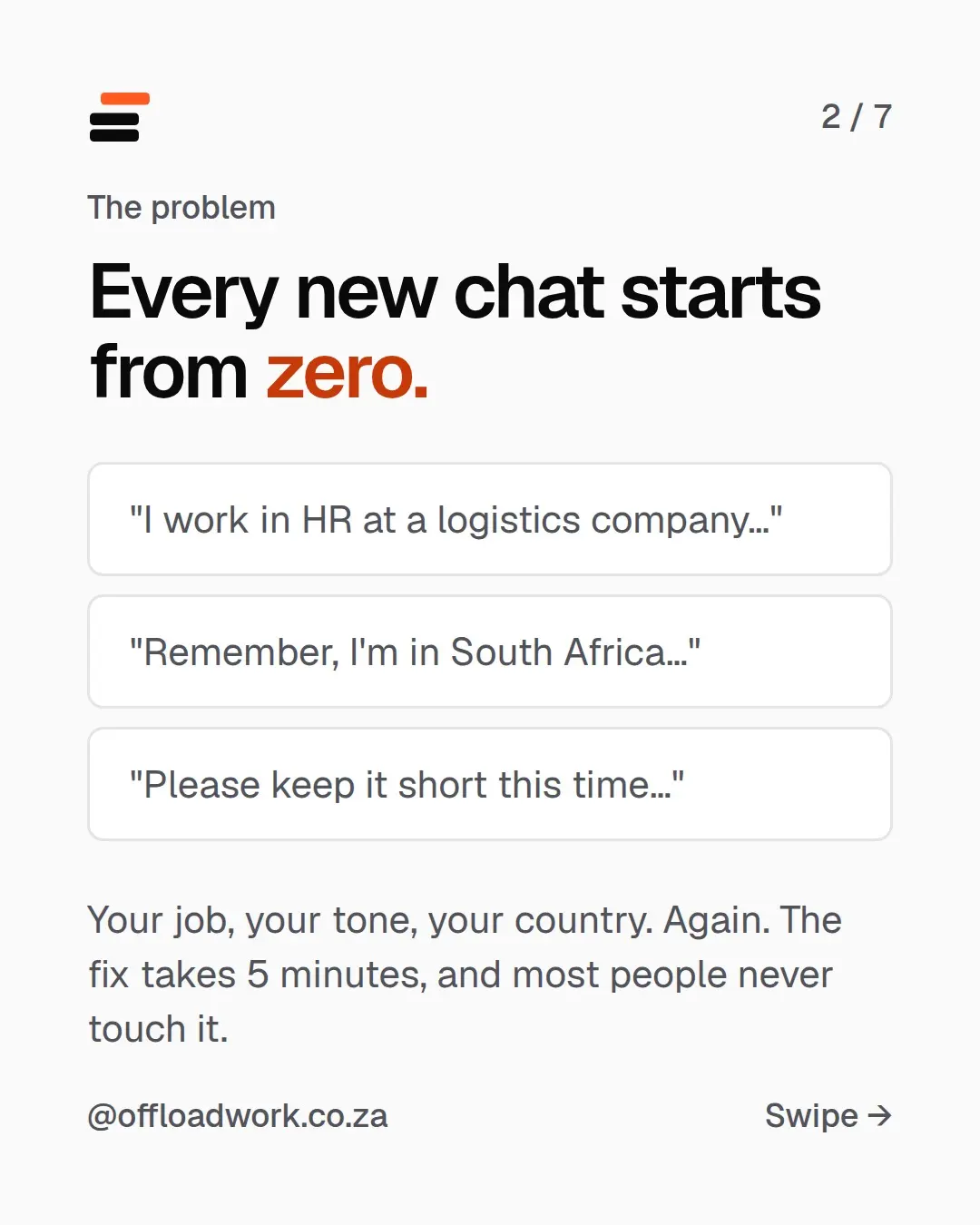
The problem: every new chat starts from zero
Without it, you retype the same background, again and again:
- “I work in HR at a logistics company…”
- “Remember, I’m in South Africa…”
- “Please keep it short this time…”
Your job, your tone, your country. Again. Or you don’t bother, and the answers stay generic: prices in dollars, American spelling, examples from companies nothing like yours. It’s the same problem as using ChatGPT like Google: it knows nothing about you until you tell it. This setting tells it once, for good.
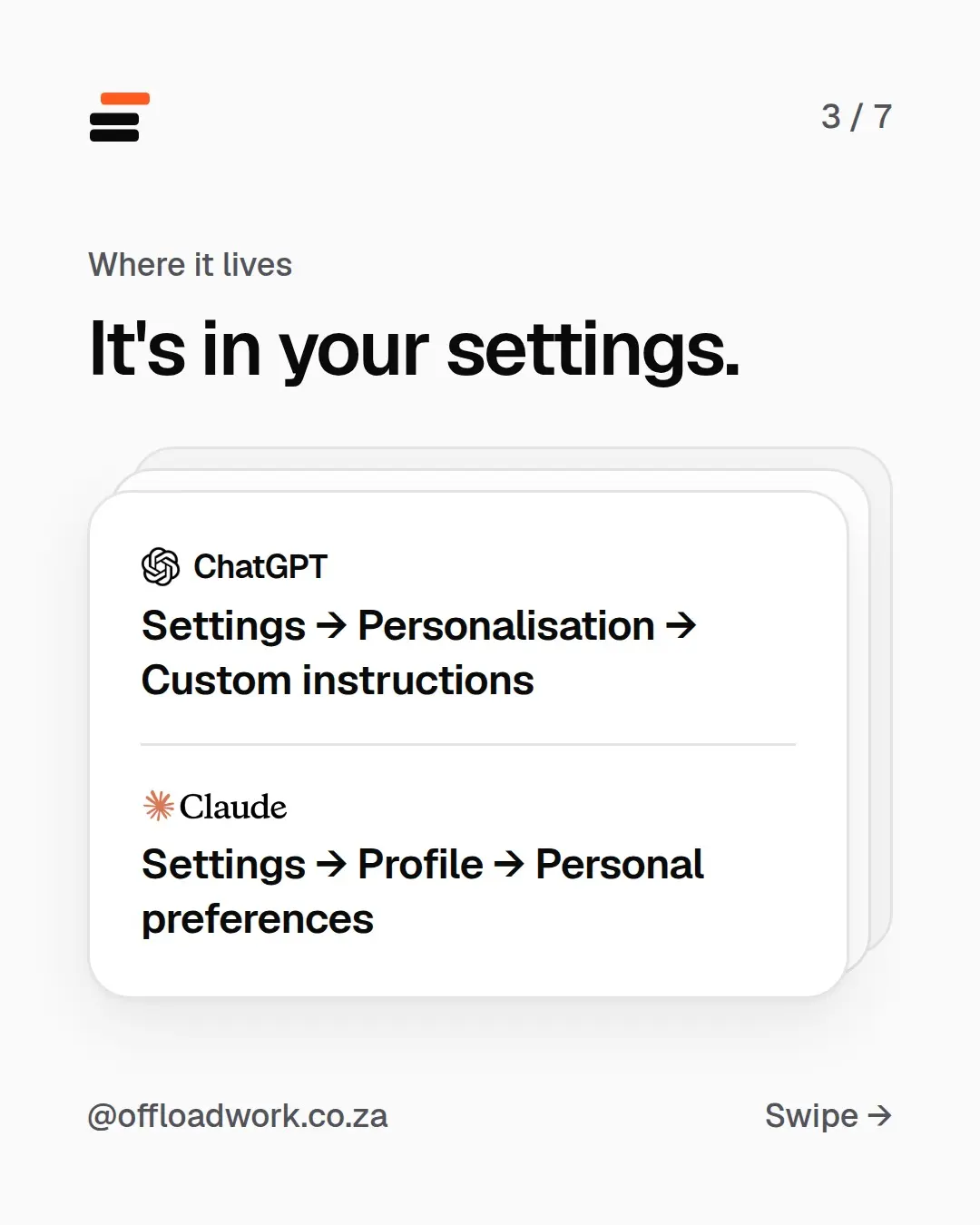
Where it lives: in your settings
ChatGPT: Settings → Personalisation → Custom instructions
Claude: Settings → Profile → Personal preferences
On a phone
Tap the menu at the top left, then your name or picture, then Settings.
On a computer
Look at the bottom left for your name or picture, click it, then Settings.
Menus move after updates. If you can’t find it, search Settings for “personal” or “instructions”.
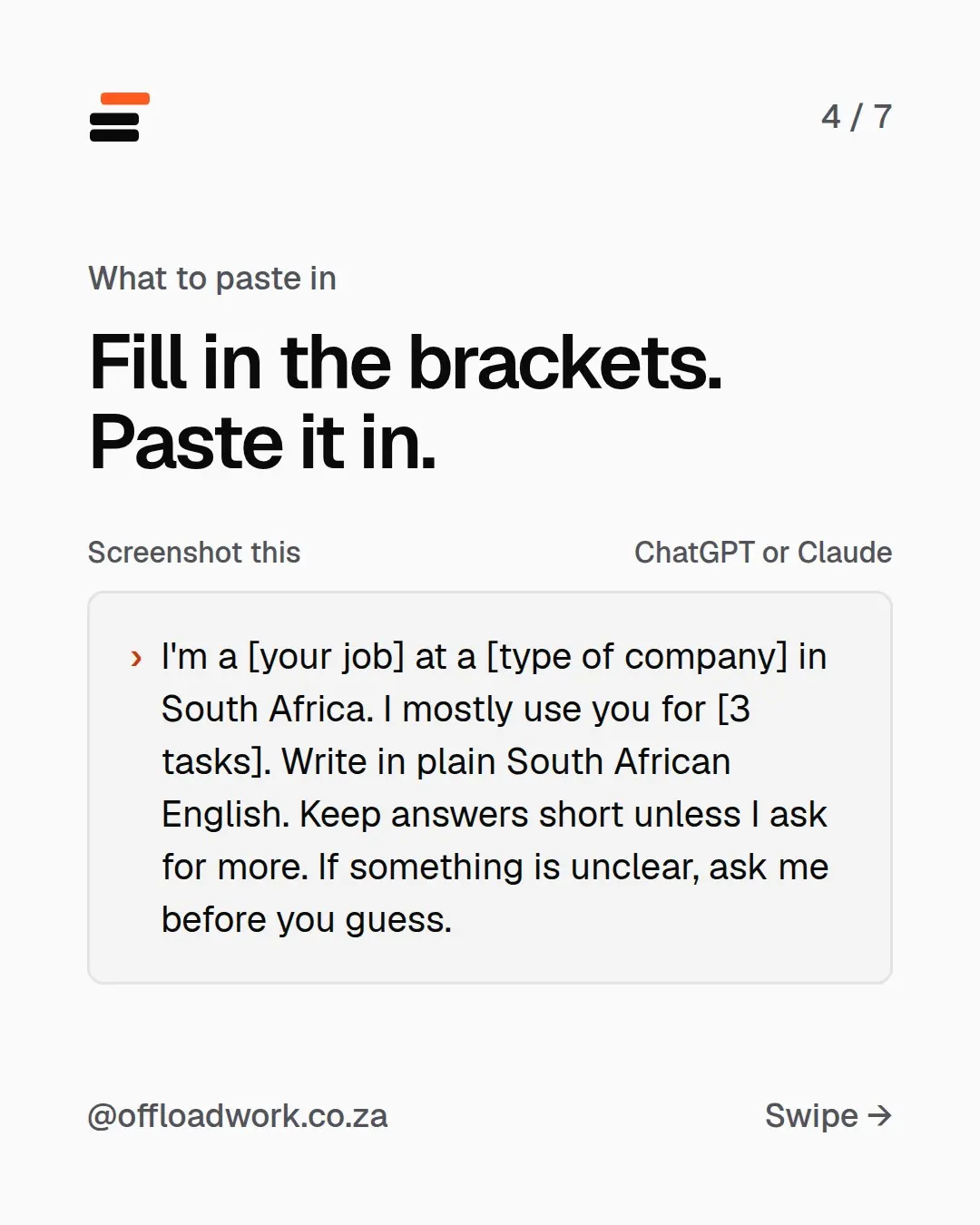
What to paste in: fill in the brackets
Screenshot this, or copy it:
I'm a [your job] at a [type of company] in South Africa. I mostly use you for [3 tasks]. Write in plain South African English. Keep answers short unless I ask for more. If something is unclear, ask me before you guess.
A filled-in example:
I'm an office manager at a small law firm in South Africa. I mostly use you for emails to clients, diary planning and checking invoices. Write in plain South African English. Keep answers short unless I ask for more. If something is unclear, ask me before you guess.
Tap Save, then start a new chat (old chats don’t change) and ask it something from your week.
What each line does
- Your job and company type change the vocabulary, the examples and what it assumes you can do.
- “In South Africa” gets you rands, South African spelling and local context, like the right public holidays and how things work here.
- Your 3 main tasks tell it what you’ll mostly ask for, so it’s ready.
- “Keep answers short” fixes the most common complaint about AI: answers that go on and on.
- “Ask me before you guess” is the single most useful line you can add. Here’s why.
Found this useful? The Offload newsletter sends one setup like this every week, for people with real jobs. Two minutes to read, free.
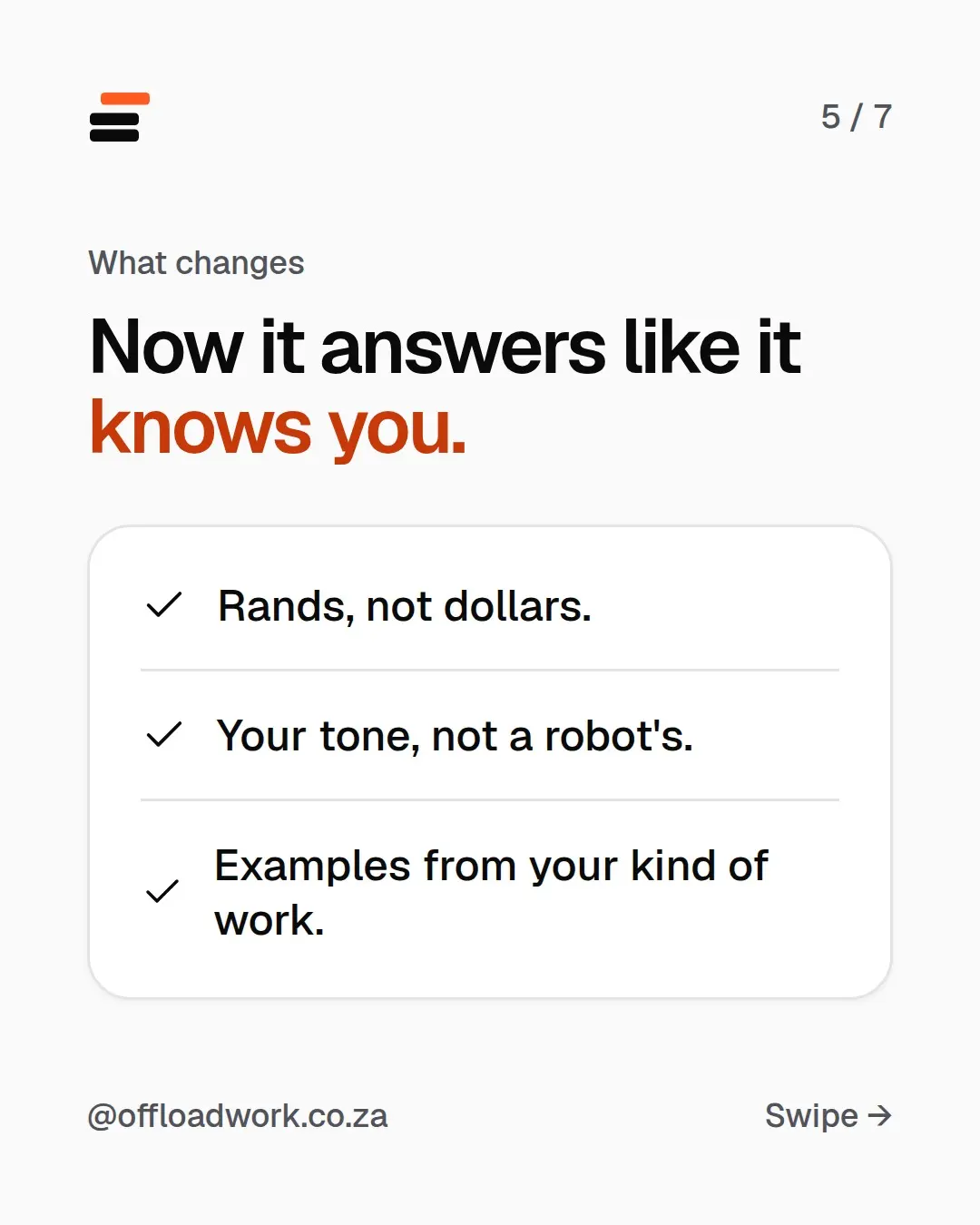
What changes: now it answers like it knows you
- Rands, not dollars. Prices, budgets and examples in the currency you actually use.
- Your tone, not a robot’s. Short and plain if that’s how you write.
- Examples from your kind of work. A law firm office manager gets law firm examples, not a tech start-up’s.
Every one of the 5 prompts for work gets better with this in place, because it no longer has to guess who’s asking.
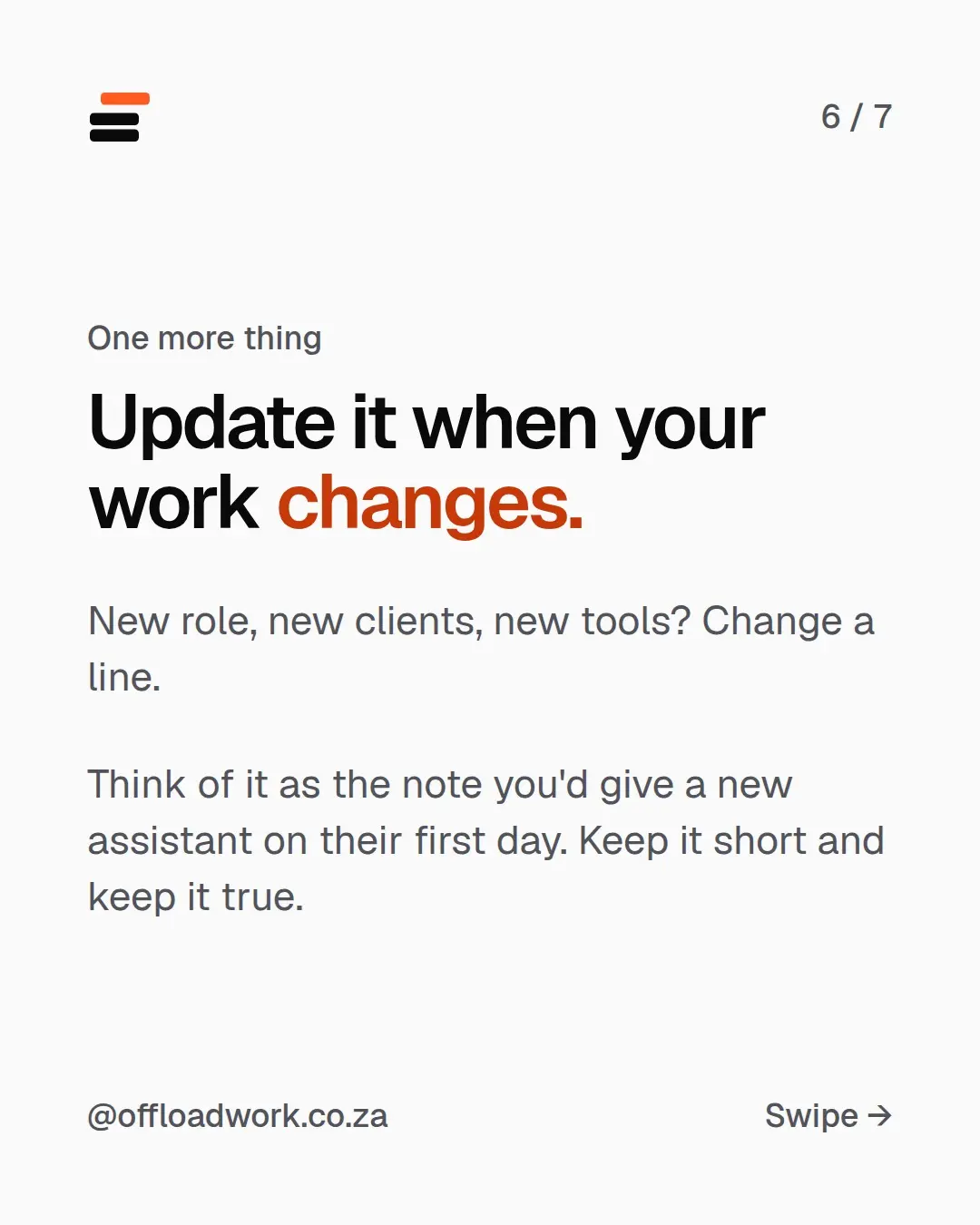
One more thing: update it when your work changes
New role, new clients, new tools? Change a line. Think of it as the note you’d give a new assistant on their first day: keep it short and keep it true.
A few lines worth adding once the basics are in:
- “When I ask for an email, give me a subject line too.”
- “Use tables when you compare things.”
- “Our financial year ends in February.”
Where people get stuck
What you write matters. “Be helpful” does nothing. Details about your job do. If answers still feel generic, add one more real detail: who you usually write to, or what a good result looks like.
Next steps: from settings to real time saved
Custom instructions cover who you are. Two more setups cover how you work:
- Projects hold the files and rules for jobs you repeat, like the monthly report. How to use ChatGPT and Claude Projects.
- Connectors let Claude read your email and calendar, so it can prep tomorrow’s meetings. Connect Claude to Gmail and Google Calendar.
The free AI guide covers all three, with every setting to tap. If you’d rather have it set up with you, one-on-one setups do it around your actual job. More five-minute setups are in Do this today.
Questions
Are custom instructions on the free plan?
Yes. ChatGPT's custom instructions and Claude's personal preferences are both available on the free plans.
I can't find the setting. Where is it?
Menus move after updates. In ChatGPT try Settings → Personalisation → Custom instructions; in Claude, Settings → Profile → Personal preferences. If it's moved, search Settings for 'personal' or 'instructions'.
What should I write?
Details about your job, not general wishes. 'I'm an office manager at a law firm. Most of my day is emails, diaries and invoices' helps. 'Be helpful' does nothing.
Is it safe to put my details in there?
Keep it to what you'd tell a new colleague: your role, your kind of company, how you like answers. Leave out passwords, ID numbers, client names and anything confidential.
Does it change old chats?
No. It applies to new chats. Start a fresh chat after you save to see the difference.